Add a purchase invoice
PDF, photo, e-invoice, bundled PDF, email or Peppol
Open Purchase invoices and click Upload at the top right. Which tab you pick depends on what you have.
PDF or photo
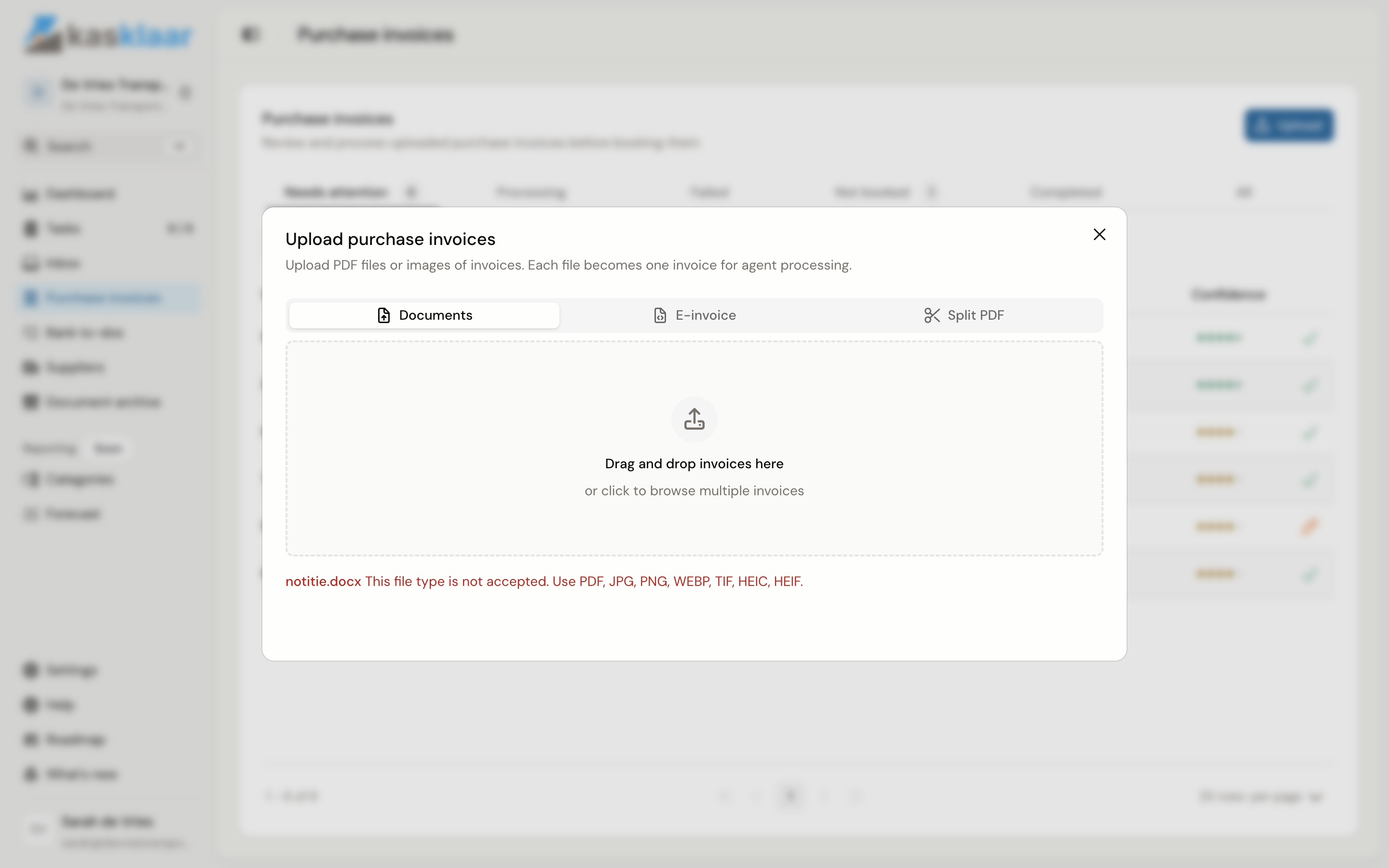
Stay on the Documents tab. Drag your files into the box, or click it to choose them. Several at once is fine; each file becomes one purchase invoice. Uploading starts straight away. Wait until every file has a green tick, then close the dialog.
Kasklaar accepts PDF, JPG, PNG, WebP, TIFF and HEIC, up to 10 MB per file; a photo from your iPhone works too. A file of another type or above the limit is listed under the box with the reason it was not accepted.
E-invoice
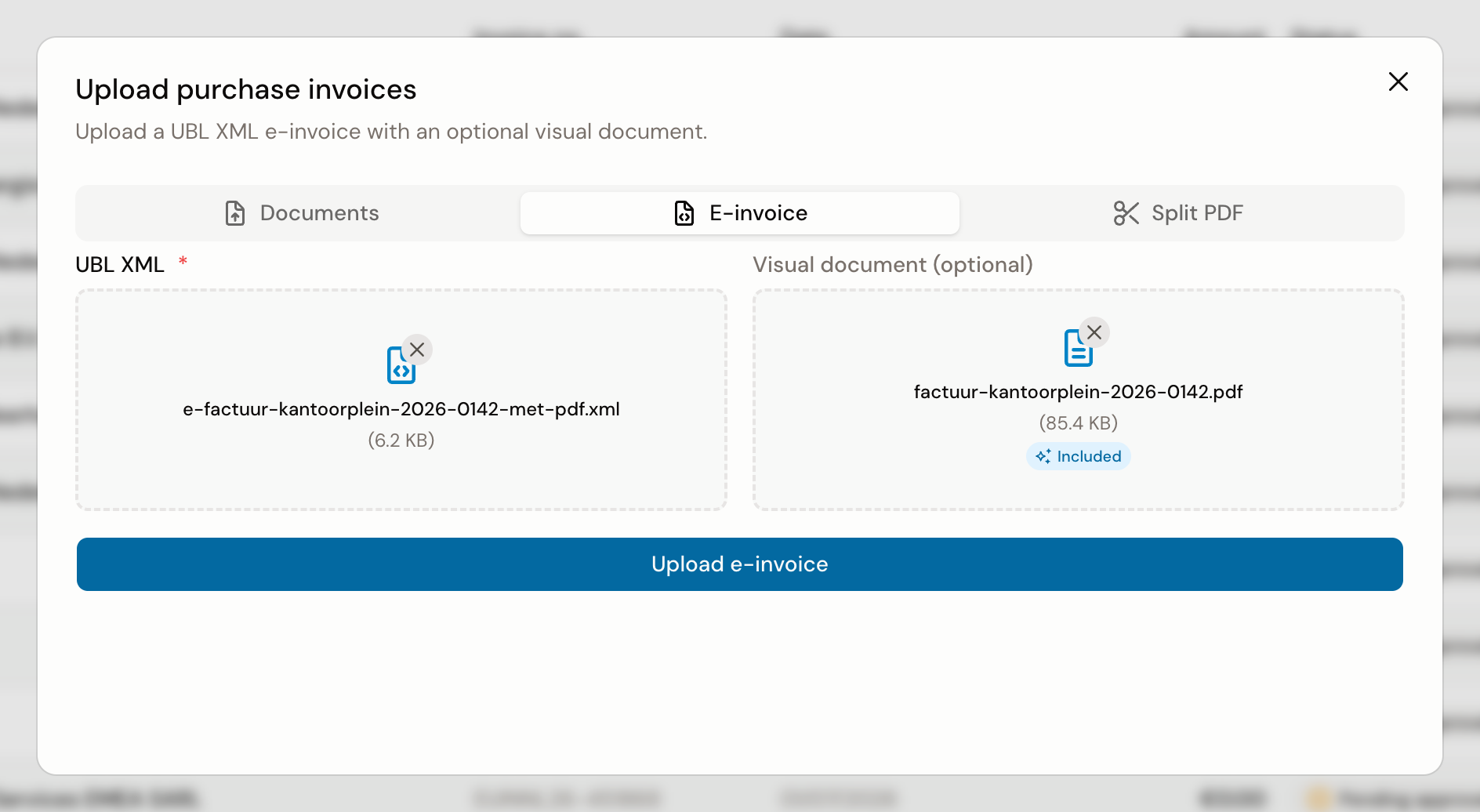
Go to the E-invoice tab and drag the UBL XML into the UBL XML box. If the XML contains a PDF, Kasklaar puts it in the Visual document box itself, with the Included badge. If it does not, add a PDF or photo of the invoice yourself. Without a visual document the Upload e-invoice button stays off. Click Upload e-invoice.
The XML box only accepts .xml, up to 2 MB.
Several invoices in one PDF
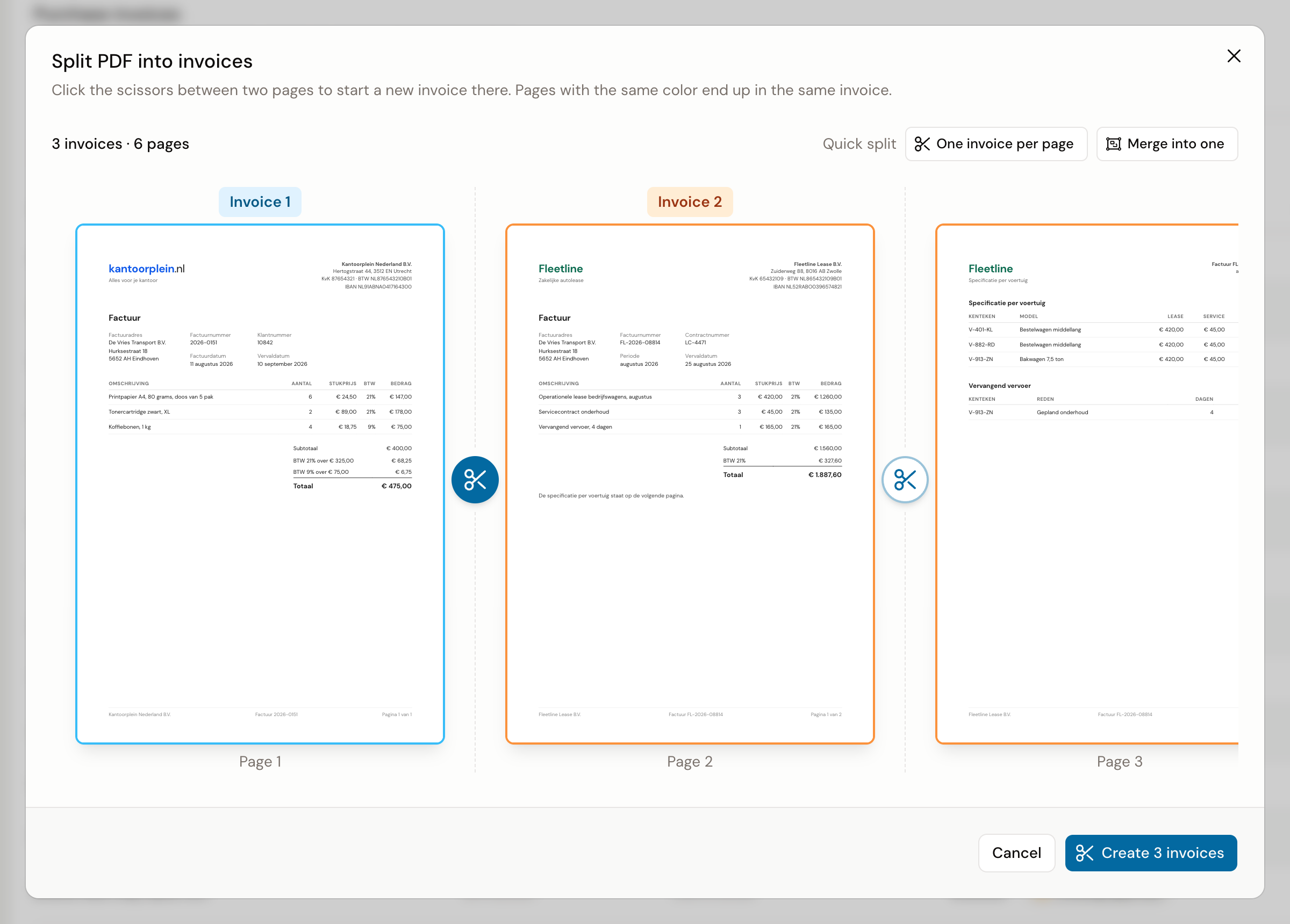
Go to the Split PDF tab and drag the PDF into the box. The split screen opens with the pages side by side in a strip.
- Click the scissors between two pages where a new invoice starts. Clicking again removes the cut.
- If the bundle consists of one-page invoices, click One invoice per page.
- Check the counter above the strip, for example 3 invoices · 6 pages, and click the button with that number at the bottom, Create 3 invoices.
Each part becomes its own purchase invoice. The original PDF is not uploaded itself. The box only accepts PDF, up to 25 MB.
By email
Forward the email with the invoice to your Kasklaar address. The invoice then arrives under Inbox. How that works is in Forward documents to your Kasklaar address.
Through Peppol
Register your administration once; how that works is in Enable Peppol e-invoicing. Suppliers that send through Peppol then arrive under Inbox, without you uploading anything.
What happens next
The invoice first sits under Processing, while your agents build the booking proposal, and then moves to Needs attention. You do not have to wait for it. Continue with Review and approve a purchase invoice.
If the invoice lands on Failed, see When an invoice does not come through.