Inkoopfactuur controleren en goedkeuren
Bekijk wat je agents hebben voorbereid en keur de factuur goed
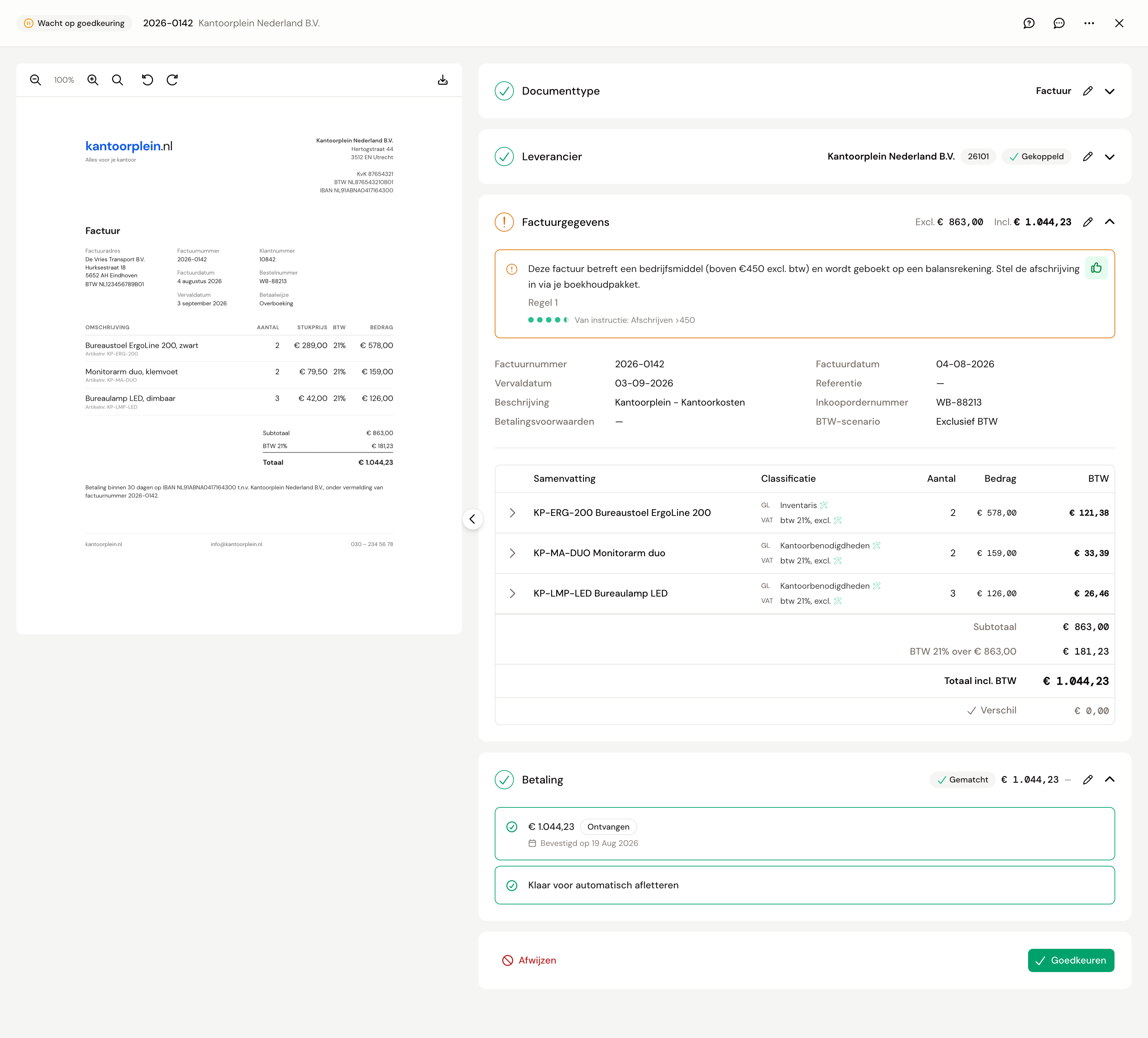
Open Inkoopfacturen. Op het tabblad Aandacht nodig staat alles wat op jou wacht. Open een factuur en je ziet links het document en rechts het boekingsvoorstel dat je agents hebben klaargezet. Loop de blokken van boven naar beneden langs.
Je agents zetten een melding bij elk blok waar ze twijfelden. Een rode melding los je op voordat je kunt goedkeuren. Een oranje melding is een waarschuwing: lees hem en beslis zelf. Afvinken hoeft niet om te kunnen goedkeuren, maar het houdt het voorstel overzichtelijk. Dat doe je met de duim omhoog rechtsboven in het blok. Begin bij de meldingen en laat de rest staan.
Leverancier
Je agents zoeken de leverancier op in je administratie. Klopt de match niet of ontbreekt hij? Klik op Zoeken en kies de juiste, of op Aanmaken om hem vast te leggen. Zonder gekoppelde leverancier kun je niet goedkeuren.
Factuurgegevens en regels
Bovenaan staan de factuurdatum en het totaal, daaronder elke regel met een grootboekrekening en een BTW-code. Controleer twee dingen:
- Verschil, onderaan de tabel. Dat moet nul zijn. Staat er een oranje bedrag, dan tellen de regels niet op tot het factuurtotaal.
- Regels met een driehoekje ernaast. Daar waren je agents niet zeker van de rekening of de code.
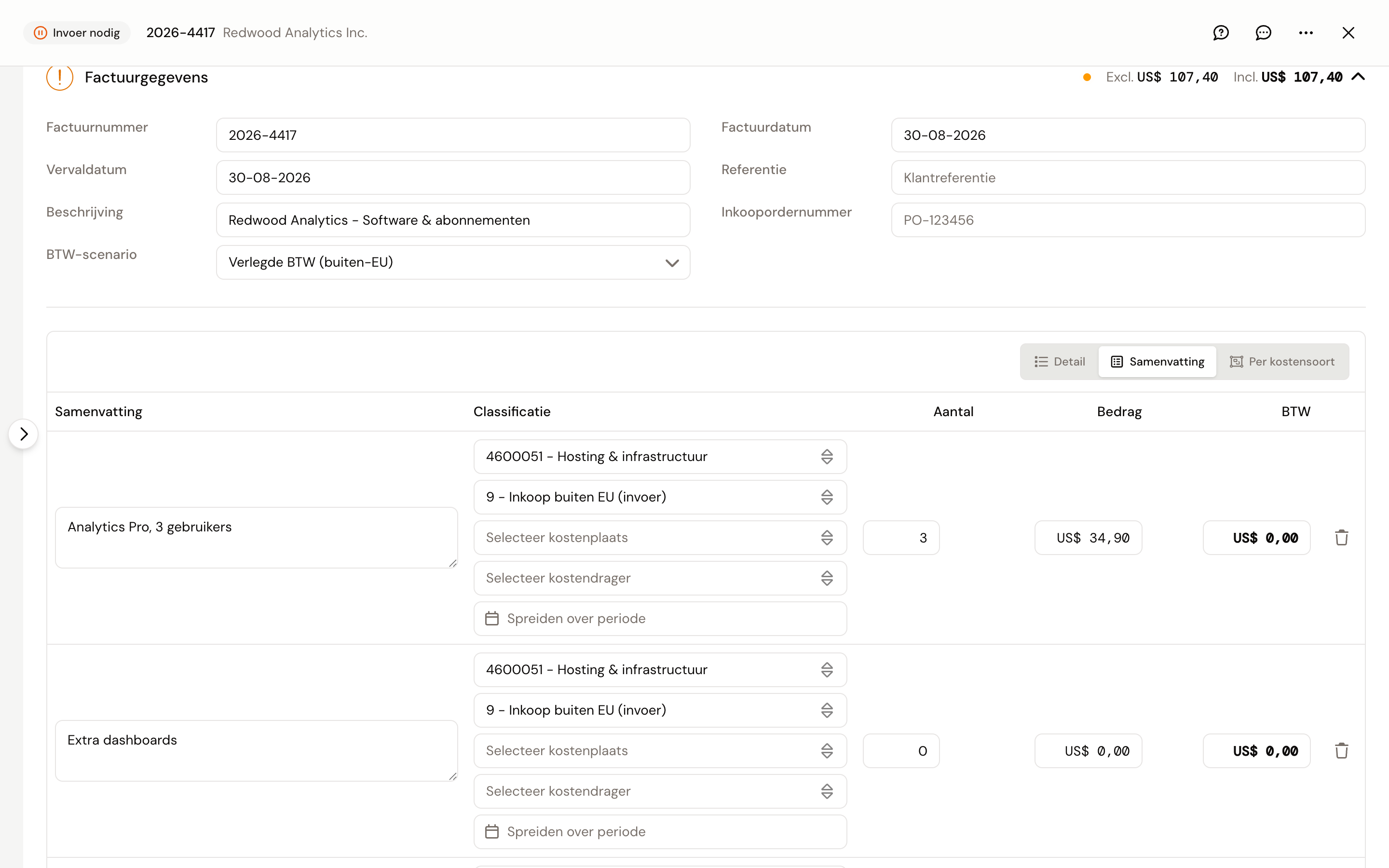
Wil je iets wijzigen, klik dan op het potlood in de kop van het blok. Kies een andere grootboekrekening of BTW-code, pas een bedrag aan, of klik op Regel toevoegen voor een regel die ontbreekt. Klik daarna op Klaar. Druk je op Escape of sluit je de factuur terwijl je nog aan het bewerken bent, dan vraagt Kasklaar of je verder wilt bewerken, je wijzigingen wilt weggooien of ze wilt opslaan. Sluit je de factuur zonder op Klaar te klikken, dan vervallen je wijzigingen.
In de bewerkmodus staat boven de tabel een schakelaar voor de indeling van de regels. Samenvatting toont de regels zoals ze op de factuur staan. Detail splitst ze uit naar de specificatie eronder; die knop zie je alleen als de factuur zo'n specificatie heeft. Per kostensoort voegt regels met dezelfde kostensoort samen op één regel. Terug naar Samenvatting kan pas als alle regels dezelfde grootboekrekening en BTW-code hebben. Wisselen bouwt de regels opnieuw op, dus Kasklaar vraagt eerst om bevestiging als je nog iets niet hebt opgeslagen.
Betaling
Hebben je agents een banktransactie gevonden, dan staat die hier gekoppeld. Klopt hij niet of ontbreekt hij? Klik op Match zoeken. Staat de factuur in een andere valuta, dan komt de wisselkoers uit de gekoppelde betaling. Is er geen betaling, vul de koers dan in met Koers invoeren. Meer daarover in Facturen in vreemde valuta.
Goedkeuren of afwijzen
Klik op Goedkeuren. Kasklaar boekt de factuur door naar je boekhouding. Direct na het goedkeuren staat hij nog even onder Aandacht nodig en daarna onder Verwerken, tot je boekhouding hem heeft. Dan komt hij op Voltooid. Mist er nog iets, dan zegt Kasklaar in rood wat.
Klik op Afwijzen als de factuur niet geboekt moet worden, bijvoorbeeld omdat hij dubbel is of omdat hij niet voor jouw bedrijf is. Hij gaat naar Niet geboekt en blijft daar bewaard.
Je agents hebben het verkeerd gedaan
Zeg het ons, elke keer. Klik rechtsboven op de factuur op de tekstballon, Feedback geven, en beschrijf wat er mis ging; wij kijken er naar en verbeteren de verwerking ermee. Corrigeer daarnaast de factuur zelf, dan is die meteen goed.
Zie ook
- Inkoopfactuur toevoegen, als de factuur er nog niet in staat.
- Als een factuur niet goed doorkomt, voor een mislukte, dubbele of creditfactuur.
- Instructies, als je bij dezelfde leverancier steeds hetzelfde corrigeert en dat wilt vastleggen.