Administration details
The blocks under Settings, Administration, Details and the company details under Company, what they hold and what a change does
Under Settings, Administration, Details you find the details and bookkeeping choices of one administration, in five blocks. Most of it was filled in from your accounting package when you connected; what you change here applies in Kasklaar only.
Where to find it
Open Settings and choose Details under Administration. Each block has a pencil at the top right. Click it, make your changes and click Save; Cancel leaves everything as it was. Anyone with access to the administration can do this.
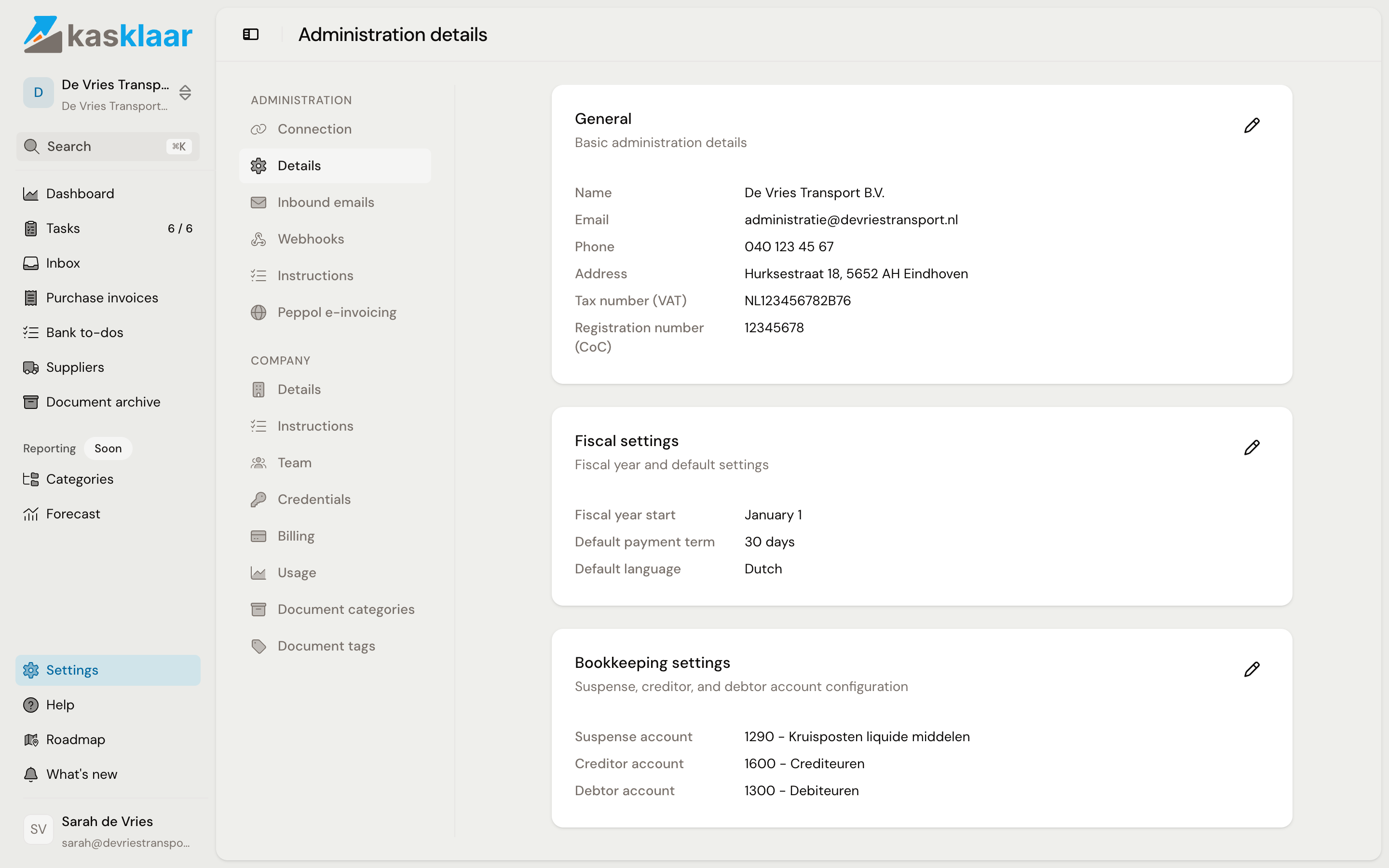
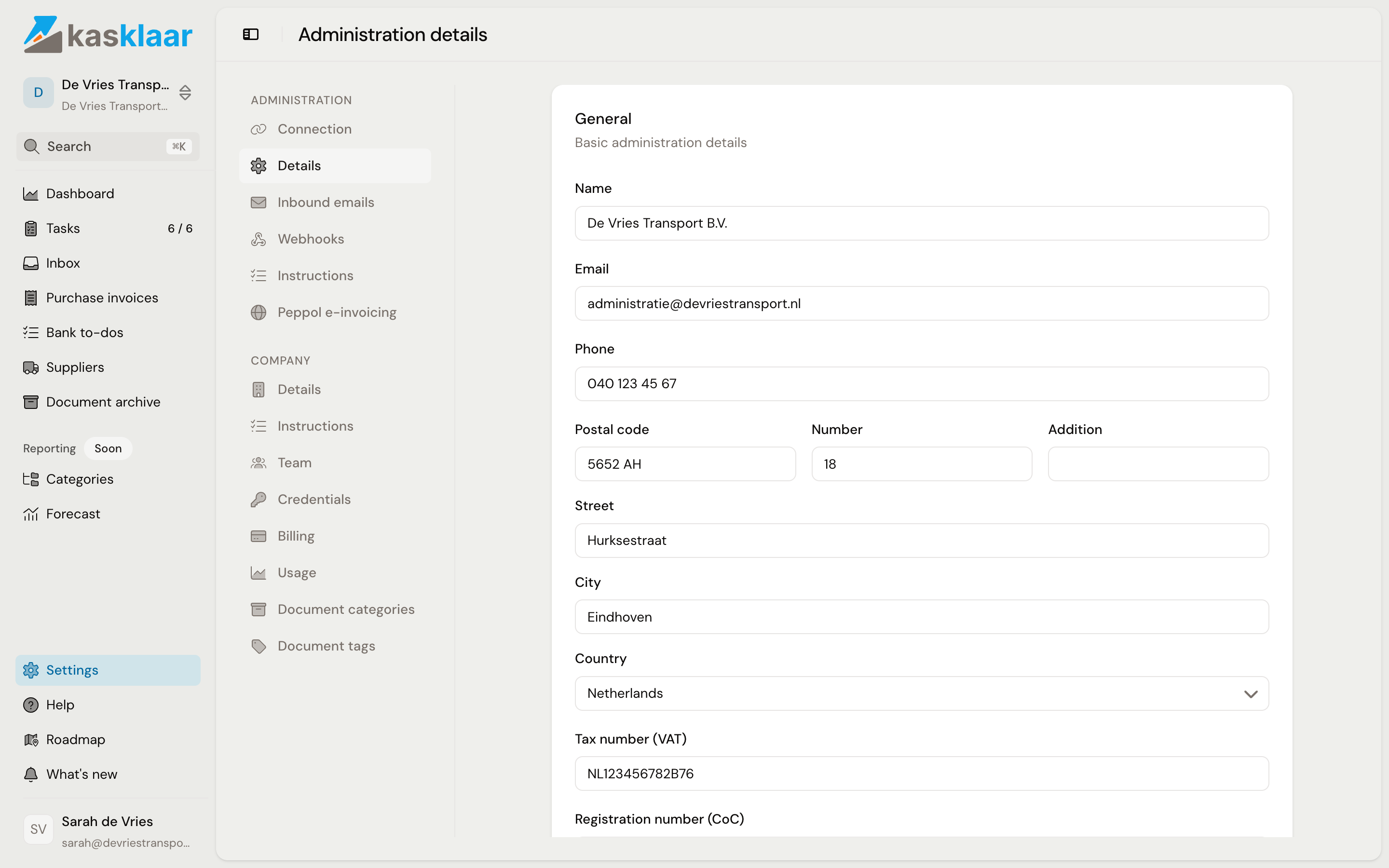
General
Name, email, phone, address, VAT number and Chamber of Commerce number of the administration. Name and address are required. You need the VAT number for Peppol e-invoicing; the wizard does not copy it from your accounting package, so fill it in here.
Fiscal settings
- Fiscal year start: the month and day your financial year begins, January 1 by default.
- Default language: the language in which Kasklaar writes texts for this administration, such as task titles and the names of document categories. This is not the language of the screens; you choose that yourself under your account.
- Default payment term: if an invoice has no due date, it becomes the invoice date plus this number of days, 30 by default. Receipts keep their own date.
Bookkeeping settings
Not sure which account or VAT code belongs here? Leave the Bookkeeping settings and VAT settings blocks as the connection filled them in and ask your accountant. A wrong choice here sends every following invoice the wrong way.
The Suspense account, the Creditor account and the Debtor account, chosen from your chart of accounts. Kasklaar uses them to read bank transactions: what sits on the suspense account is not yet assigned and shows up under Bank to-dos; what sits on the creditor or debtor account counts as settled. See Bank to-dos: payments without an invoice.
What are those three accounts, actually?
The creditor account is what you still owe suppliers; every approved purchase invoice adds to it, every payment takes from it. The debtor account is the same for what customers still owe you. The suspense account is the waiting room: your accounting package puts a bank transaction there when it is not yet known which invoice or cost it belongs to. Kasklaar looks at that waiting room to fill your Bank to-dos.
Where are these accounts in Exact Online?
Under Financial, Master data, General ledger accounts. Every ledger account there has a Type. Kasklaar only offers accounts of the matching type here: Accounts payable for the creditor account, Accounts receivable for the debtor account and General for the suspense account. Kasklaar already suggested one when connecting; if an account is missing from the list, check its type in Exact. The screen General ledger accounts: Links in Exact's administration settings is something else; these three are not there. For other accounting packages the explanation follows once the connection exists.
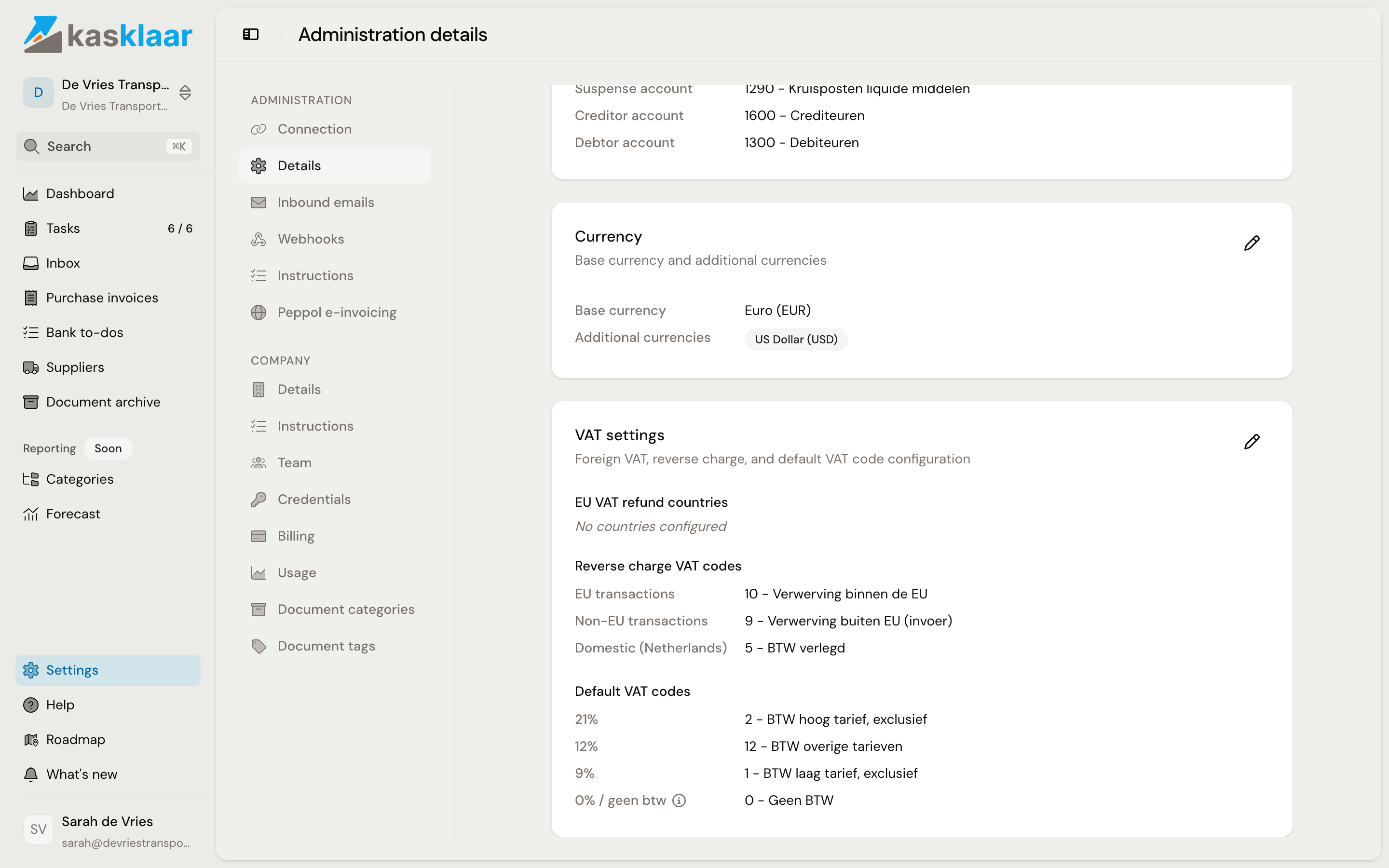
Currency
The base currency and the additional currencies in which you can process invoices. See Enabling a currency.
VAT settings
- EU VAT refund countries: the EU countries where you reclaim foreign VAT. Pick a country and you can attach a ledger account for the refund.
- Reverse charge VAT codes: the VAT code your agents pick for an invoice with reverse-charged VAT, separately for suppliers inside the EU, outside the EU and domestic, such as in construction.
- Default VAT codes: per rate, the purchase code your agents use when your chart of accounts has several codes with the same rate. This block only appears when that is the case.
What does EU VAT refund countries actually do?
If you fill up in Germany or stay in a hotel in Belgium, the receipt carries German or Belgian VAT. You cannot deduct that in your Dutch VAT return; you can only reclaim it from the tax office through the refund of VAT from other EU countries. If you enable a country here, your agents book that foreign VAT separately on the chosen ledger account, so at the end of the year you can see how much you can reclaim. If the country is not listed, the VAT simply counts as cost. VAT from outside the EU always goes into the cost.
What is reverse-charged VAT?
Normally the supplier charges VAT on the invoice and pays it to the tax office. With reverse-charged VAT there is no VAT on the invoice; you declare it yourself in your VAT return and deduct it in the same return. That happens with suppliers in another EU country, with imports from outside the EU, and in the Netherlands with subcontractors in construction. The invoice then says "VAT reverse-charged". Your accounting package has separate VAT codes for this; here you tell your agents which ones.
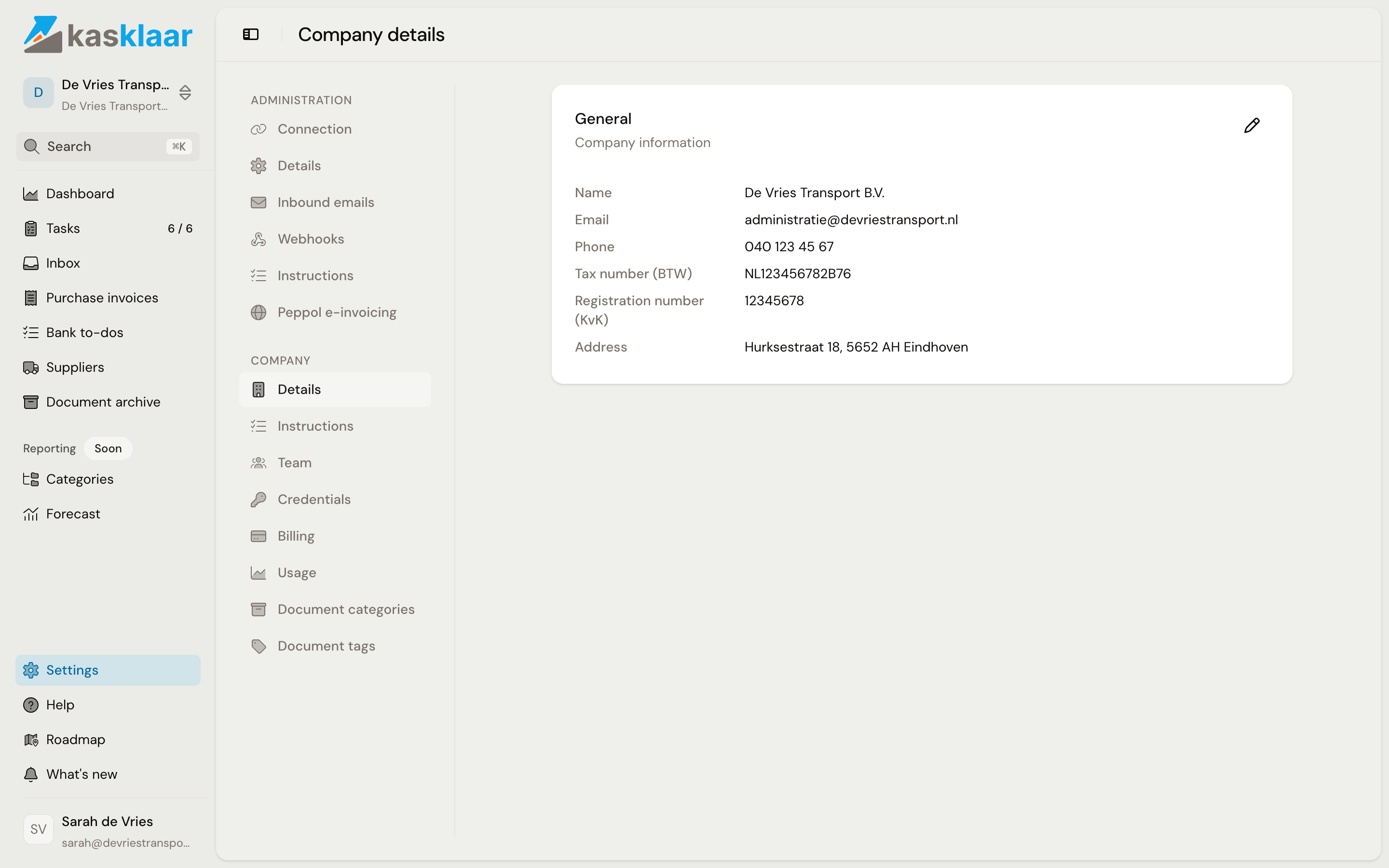
Company details
Next to the administration there is the company: the legal entity one or more administrations belong to. Its details are under Settings, Company, Details, in one block: name, email, phone, VAT number, registration number and address. With a single administration these are the same details as under General; fill them in in both places. The checklist task Complete your profile points to this block.
Frequently asked questions
Does a change here go to my accounting package too? No. These settings say how Kasklaar treats your administration; your chart of accounts and VAT codes themselves are managed in your accounting package, and Kasklaar fetches them every hour.
I do not see Default VAT codes. That block only exists when several VAT codes in your chart of accounts share the same rate. With one code per rate there is nothing to choose.
See also
- Enabling a currency
- Connecting Exact Online, for the settings that are pre-filled when connecting.