Review and approve a purchase invoice
Check what your agents prepared, then approve the invoice
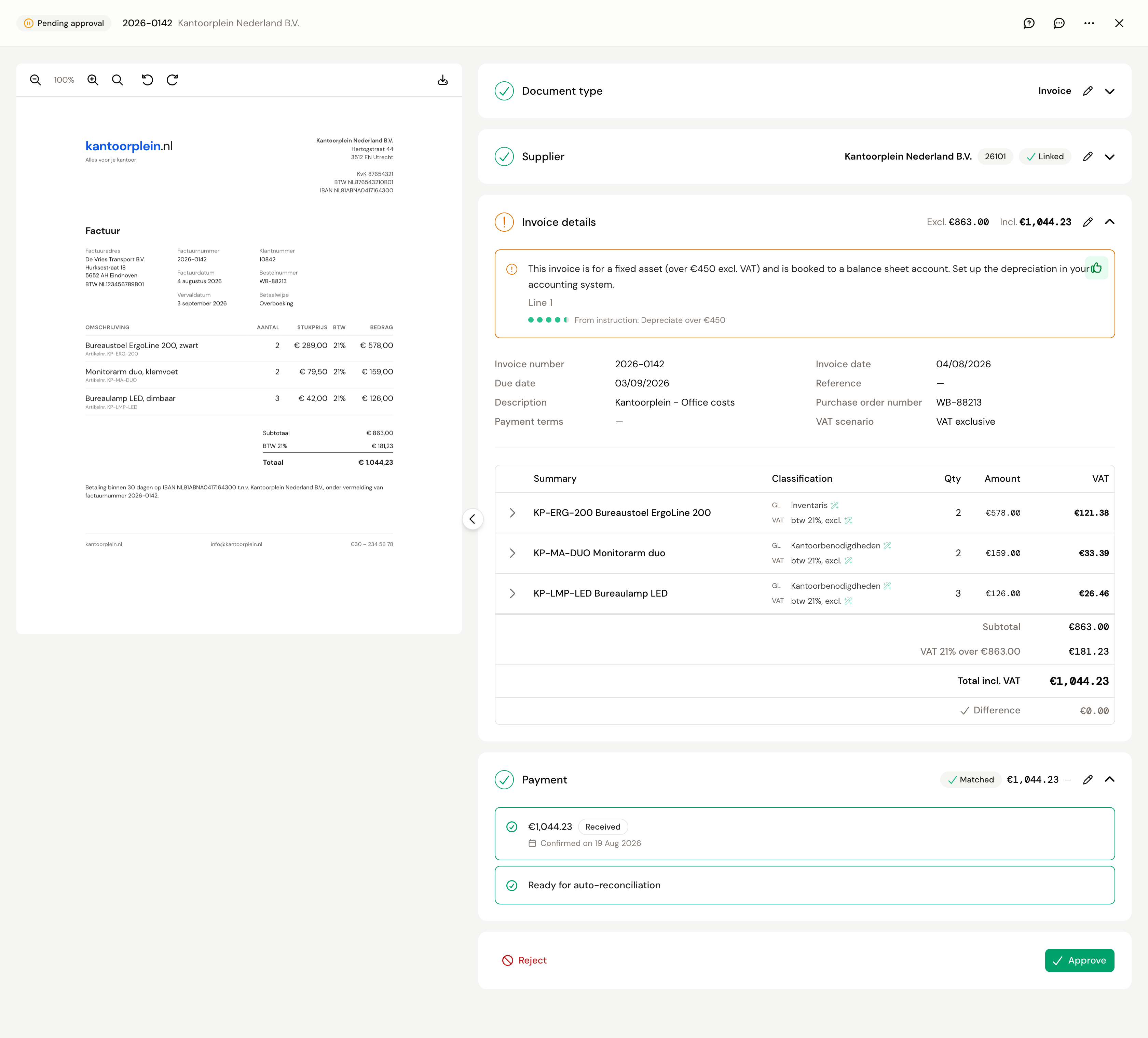
Open Purchase invoices. The Needs attention tab holds everything that is waiting for you. Open an invoice and you see the document on the left and the booking proposal your agents prepared on the right. Go through the blocks from top to bottom.
Your agents leave a notice on every block where they were unsure. A red notice you resolve before you can approve. An orange notice is a warning: read it and decide for yourself. Ticking it off is not required to approve, but it keeps the proposal tidy. You do that with the thumbs-up at the top right of the block. Start with the notices and leave the rest alone.
Supplier
Your agents look up the supplier in your administration. Is the match wrong or missing? Click Search and pick the right one, or Create to add it. Without a matched supplier you cannot approve.
Invoice details and lines
At the top are the invoice date and the total, below that every line with a GL account and a VAT code. Check two things:
- Difference, at the bottom of the table. It has to be zero. An orange amount there means the lines do not add up to the invoice total.
- Lines with a triangle next to them. There your agents were not sure of the account or the code.
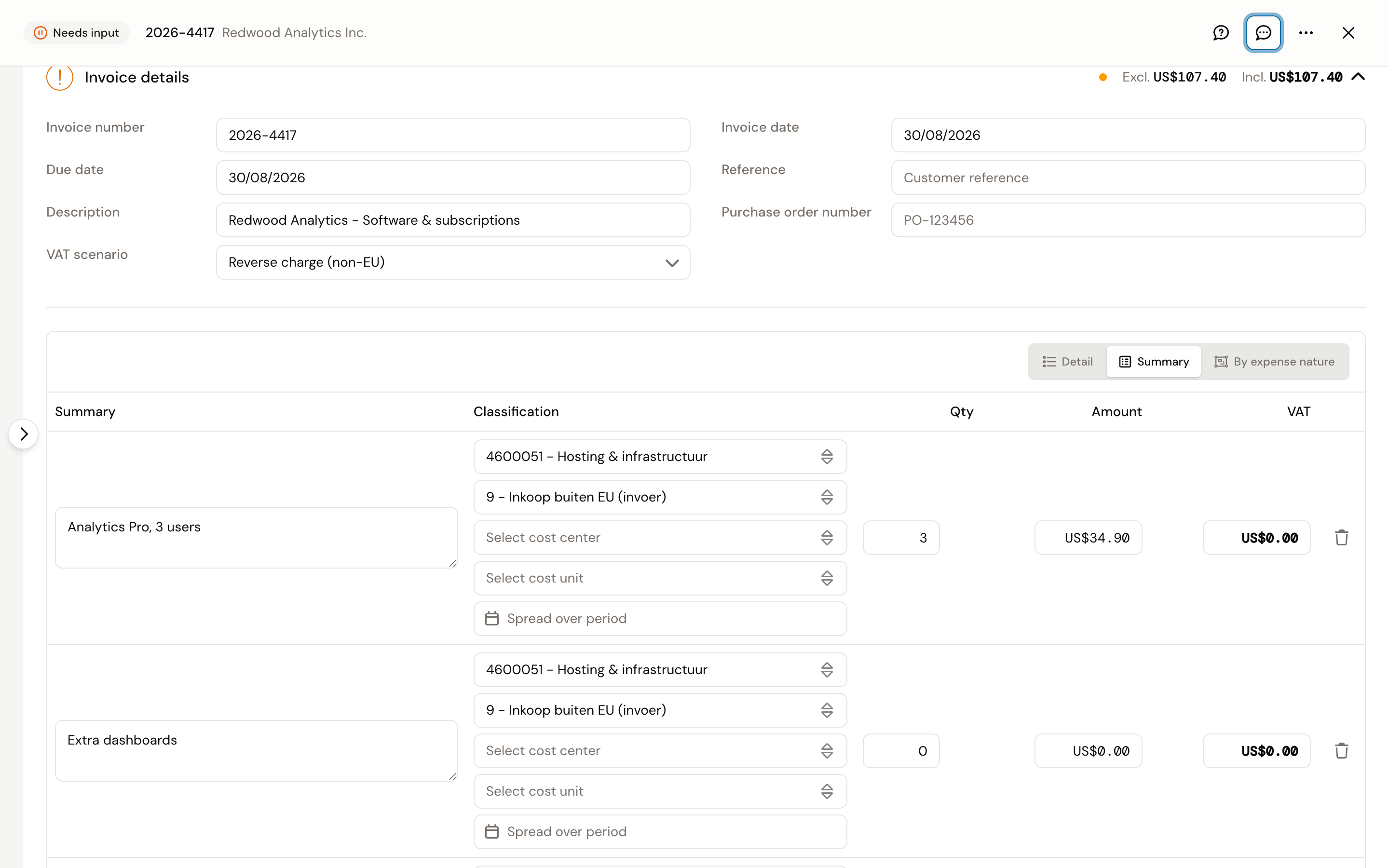
To change something, click the pencil in the header of the block. Pick a different GL account or VAT code, correct an amount, or click Add line for a line that is missing. Then click Done. If you press Escape or close the invoice while still editing, Kasklaar asks whether you want to keep editing, discard your changes or save them. If you close the invoice without clicking Done, your changes are discarded.
In edit mode a switch above the table sets how the lines are laid out. Summary shows the lines as they are on the invoice. Detail splits them into the specification underneath; that button only appears when the invoice has one. By expense nature merges lines with the same expense nature into one line. Going back to Summary is only possible once all lines share the same GL account and VAT code. Switching rebuilds the lines, so Kasklaar asks for confirmation first if you have unsaved changes.
Payment
If your agents found a bank transaction, it is matched here. Is it wrong or missing? Click Find match. If the invoice is in another currency, the exchange rate comes from the matched payment. Without a payment, enter the rate with Enter rate. More on that in Invoices in a foreign currency.
Approve or reject
Click Approve. Kasklaar posts the invoice to your accounting system. Right after approving, the invoice stays under Needs attention for a moment and then moves to Processing, until your accounting system has it. Then it lands on Completed. If something is still missing, Kasklaar says in red what it is.
Click Reject if the invoice should not be posted at all, for example because it is a duplicate or because it is not for your company. It moves to Not booked and stays there.
Your agents got it wrong
Tell us, every time. Click the speech bubble at the top right of the invoice, Give feedback, and describe what went wrong; we look at it and use it to improve processing. Correct the invoice yourself as well, so it is right straight away.
See also
- Add a purchase invoice, if the invoice is not in yet.
- When an invoice does not come through, for a failed, duplicate or credit invoice.
- Instructions, if you keep correcting the same thing for the same supplier and want to record it.