Invoices in a foreign currency
What happens to a purchase invoice that is not in euros
A purchase invoice in dollars or pounds stays in that currency in Kasklaar, and that is how it goes to your accounting system too: the amount as it is on the invoice, with the exchange rate alongside. Before you can approve, the currency has to be enabled and there has to be an exchange rate.
What you see
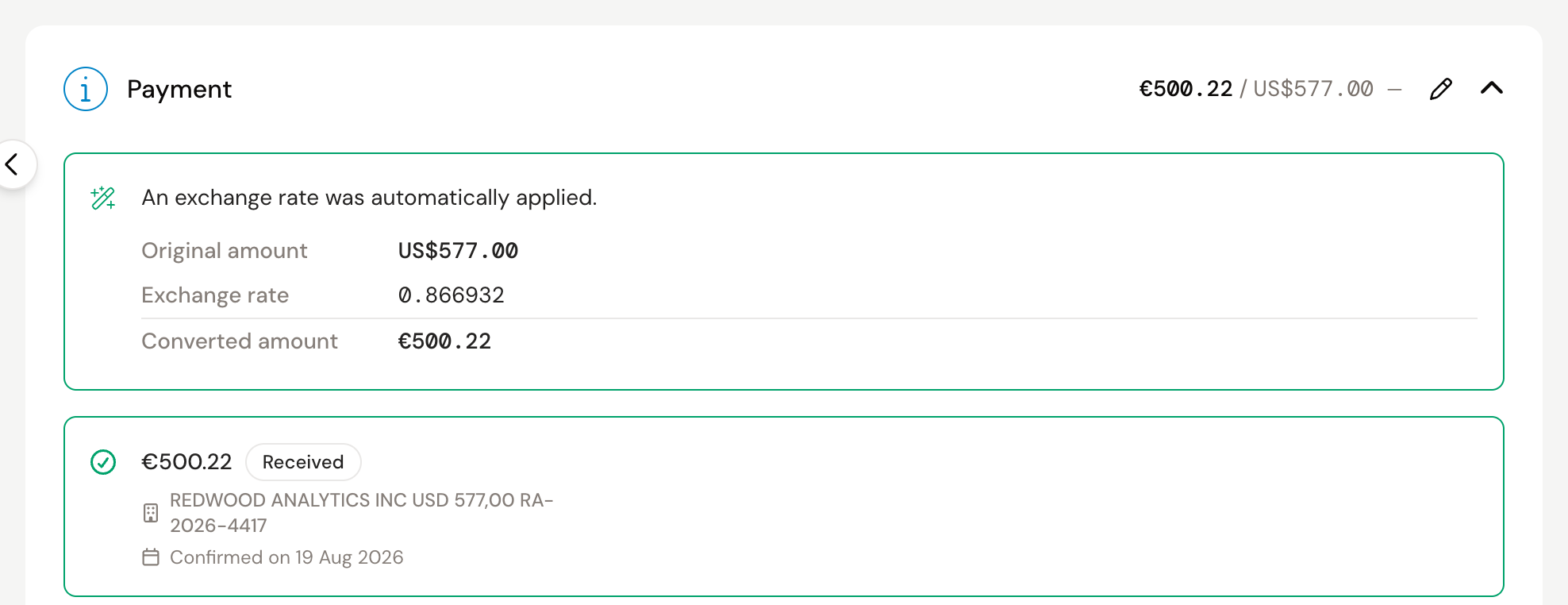
In the list and at the top of the invoice, the amount is in the invoice's currency. Once there is a rate, it appears under Invoice details at Exchange rate, and in the Payment block with the original and the converted amount.
Where the rate comes from
From the payment. If your agents matched the bank transaction you paid the invoice with, they take the rate from it. If no payment is matched yet but it is on your bank statement, match it with Find match in the Payment block. Then you do not have to enter a rate yourself.
Entering a rate yourself
Without a payment, the Payment block shows the red notice "An exchange rate is needed to convert from USD to EUR".
- Click Enter rate.
- On the Amount tab, enter what you paid in euros, or on the Rate tab enter the rate itself. Kasklaar works out the other side.
- Click Save.
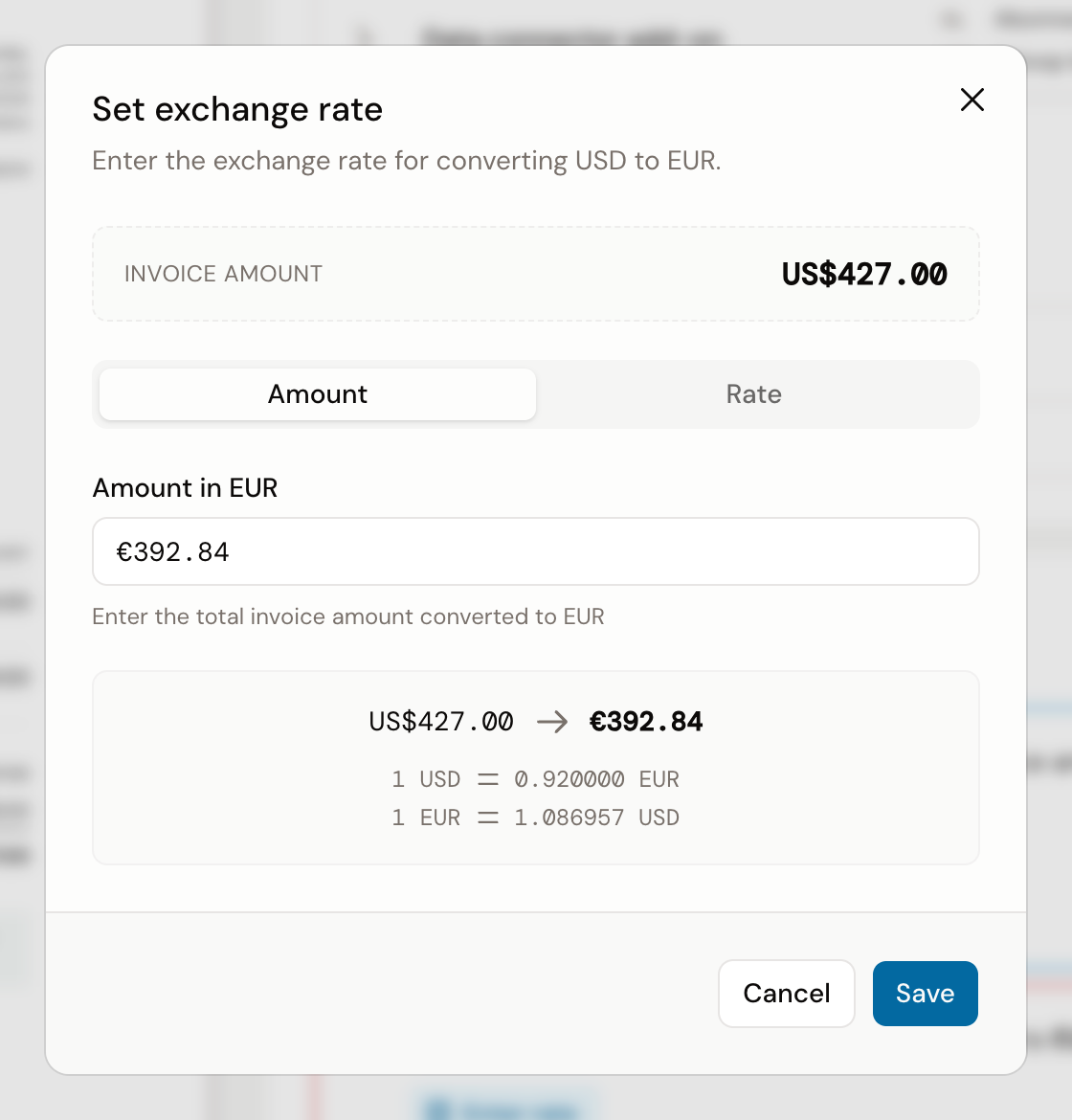
To change the rate later, click Edit in the Payment block and then Edit exchange rate.
Enabling the currency
If the currency is not enabled yet, the Payment block shows a red notice with the button Configure currency or Enable currency. Click it and confirm. Kasklaar enables the currency for this administration and in your accounting system, and the notice disappears.
You can enable currencies in advance under Settings, Administration, Details, at Additional currencies. That only enables them in Kasklaar, not in your accounting system.
See also
- Review and approve a purchase invoice
- When an invoice does not come through, if your accounting system refuses the invoice because the currency is not active there.