When an invoice does not come through
A failed invoice, a possible duplicate or a credit invoice
Three situations where an invoice does not simply go from Processing to Needs attention to Completed.
Why is my invoice in Failed?
Open the invoice on the Failed tab. At the top it says what went wrong: Processing failed when your agents could not read the document, Booking failed when your accounting system refused the invoice. Below that is the reason in plain words, and in small type the literal system message, for when you ask us for help.
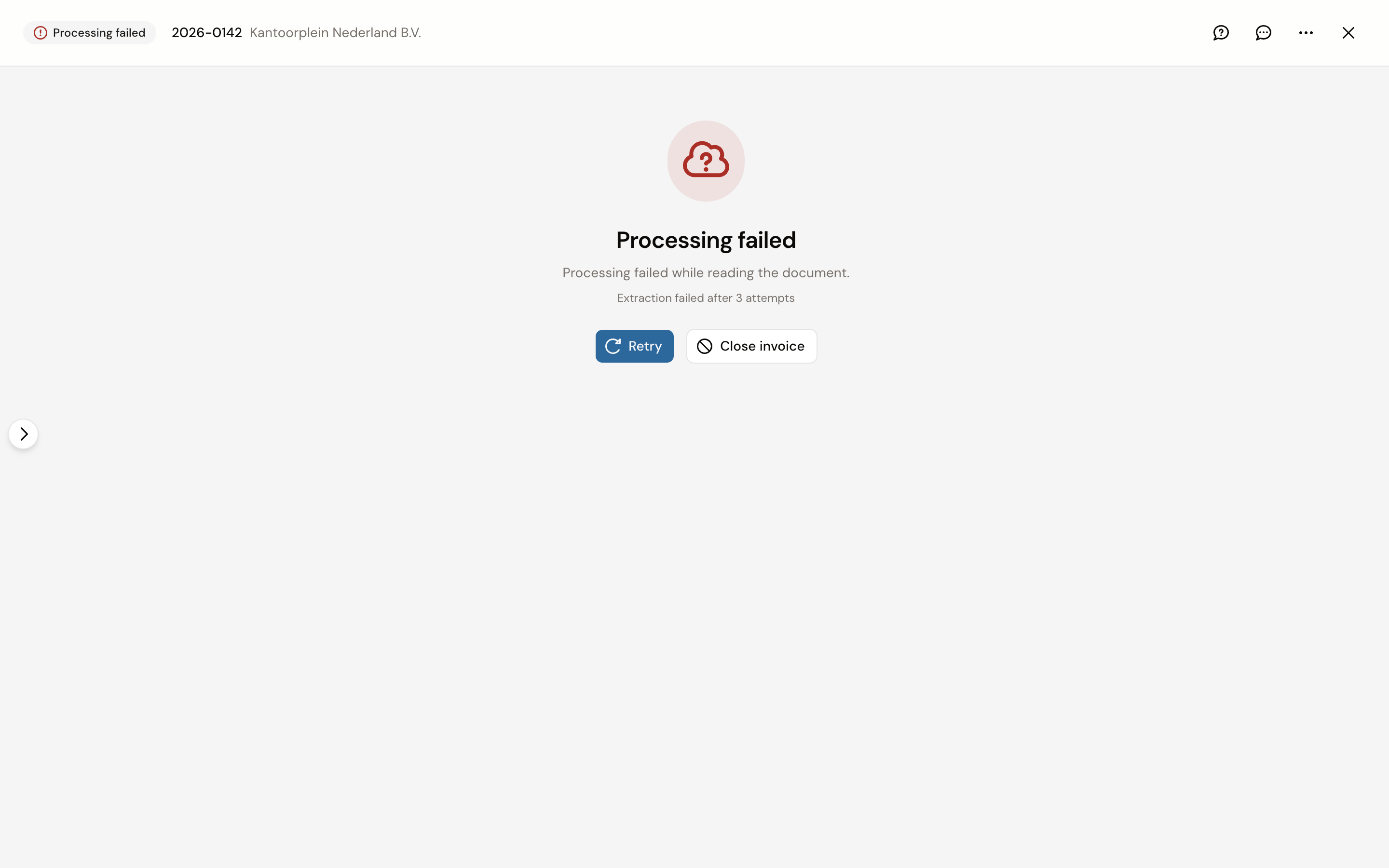
Processing failed means your agents could not read the document, or the processing got stuck. Click Retry. Kasklaar picks up at the step that went wrong; what you had already filled in stays. If it fails again, upload a better scan.
Booking failed means your accounting system refused the invoice. The message says why: the connection to your accounting system is not active (see Connect Exact Online), the currency is not enabled there, or the system rejects a value on the invoice. Fix that first, then click Retry.
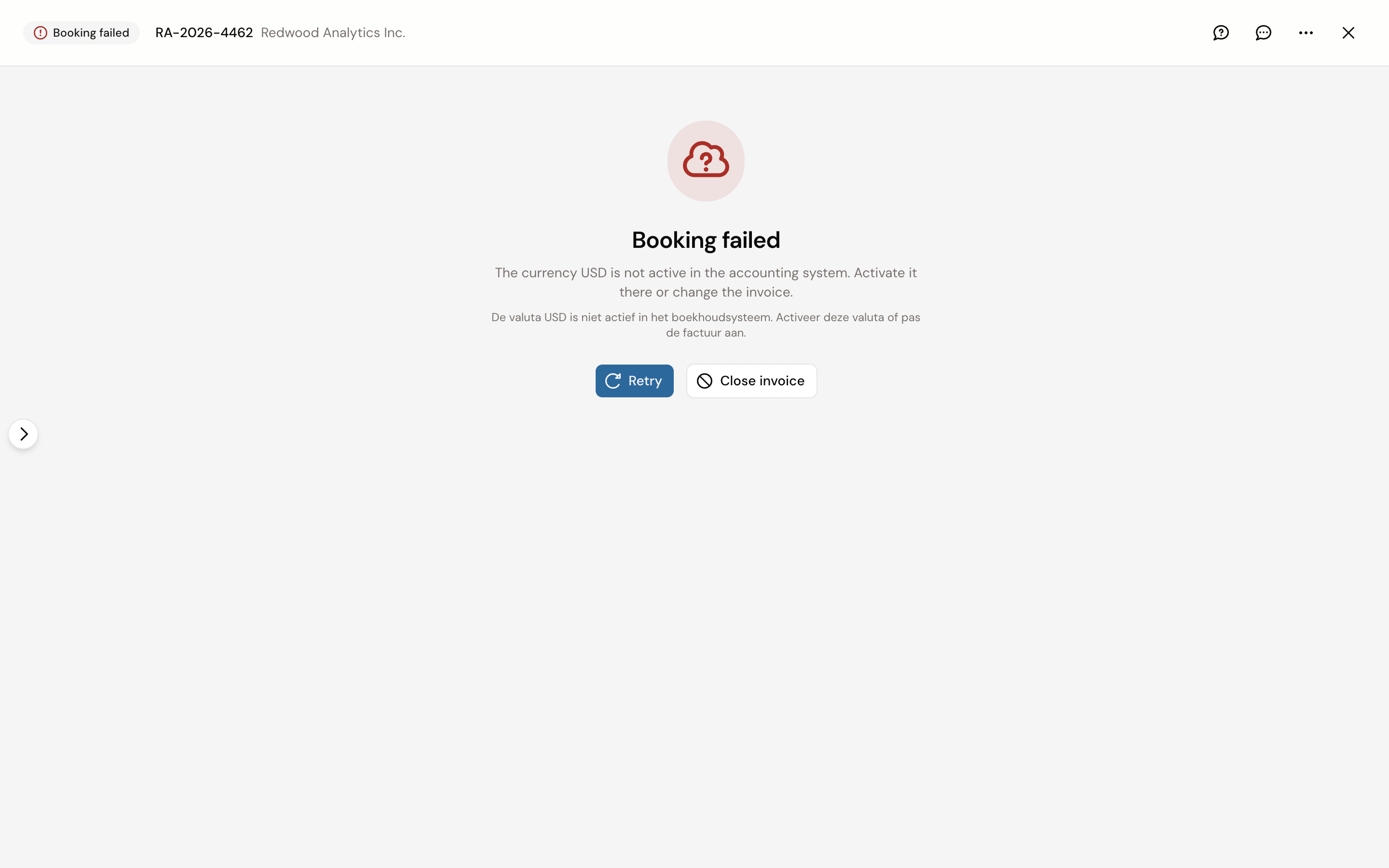
If you do not want to post the invoice at all, click Close invoice. Kasklaar asks for confirmation. The invoice is then not posted, and you cannot undo that.
Is this invoice a duplicate?
If the invoice looks like one that is already in your administration, the notice "This invoice may be a duplicate" appears at the top of the proposal, with the invoices it resembles underneath: invoice number, date, amount and the percentage match. Kasklaar compares supplier and invoice number.

If it really is the same invoice, click Reject. If it is a different invoice, tick the notice off with the thumbs-up and approve. The notice does not block approval.
What do I do with a credit invoice?
Kasklaar recognises a credit invoice by itself. It gets the Credit note badge and the amounts are negative. Beyond that, you check and approve it like any other invoice. For the payment, your agents look for an incoming bank transaction, the refund.
If Kasklaar did not recognise it as a credit note, choose Credit note under Document type. The amounts then flip.
Two red notices only appear on credit notes. "We auto-corrected an inconsistent VAT sign on this credit note" shows the old and the new value per amount. "This credit note has both positive and negative lines" shows each line with its amount. In both cases, check the amounts against the document before you approve.
Your agents got it wrong
Tell us, every time. Click the speech bubble at the top right of the invoice, Give feedback, and describe what went wrong; we look at it and use it to improve processing. Correct the invoice yourself as well, so it is right straight away.
See also
- Review and approve a purchase invoice
- Invoices in a foreign currency, for enabling a currency.