Forward documents to your Kasklaar address
Forward invoices and receipts to your administration's email address and they appear in your Inbox
Every administration has its own email address at Kasklaar. Send an email with an invoice or receipt to it, and the attachment appears in your Inbox, where your agents look at it and get it ready for you.
Where to find the address
Open Settings, Administration, Inbound emails. The address is already there; Kasklaar creates one for every new administration. It consists of three groups of four characters followed by the Kasklaar domain. Click the address to copy it.
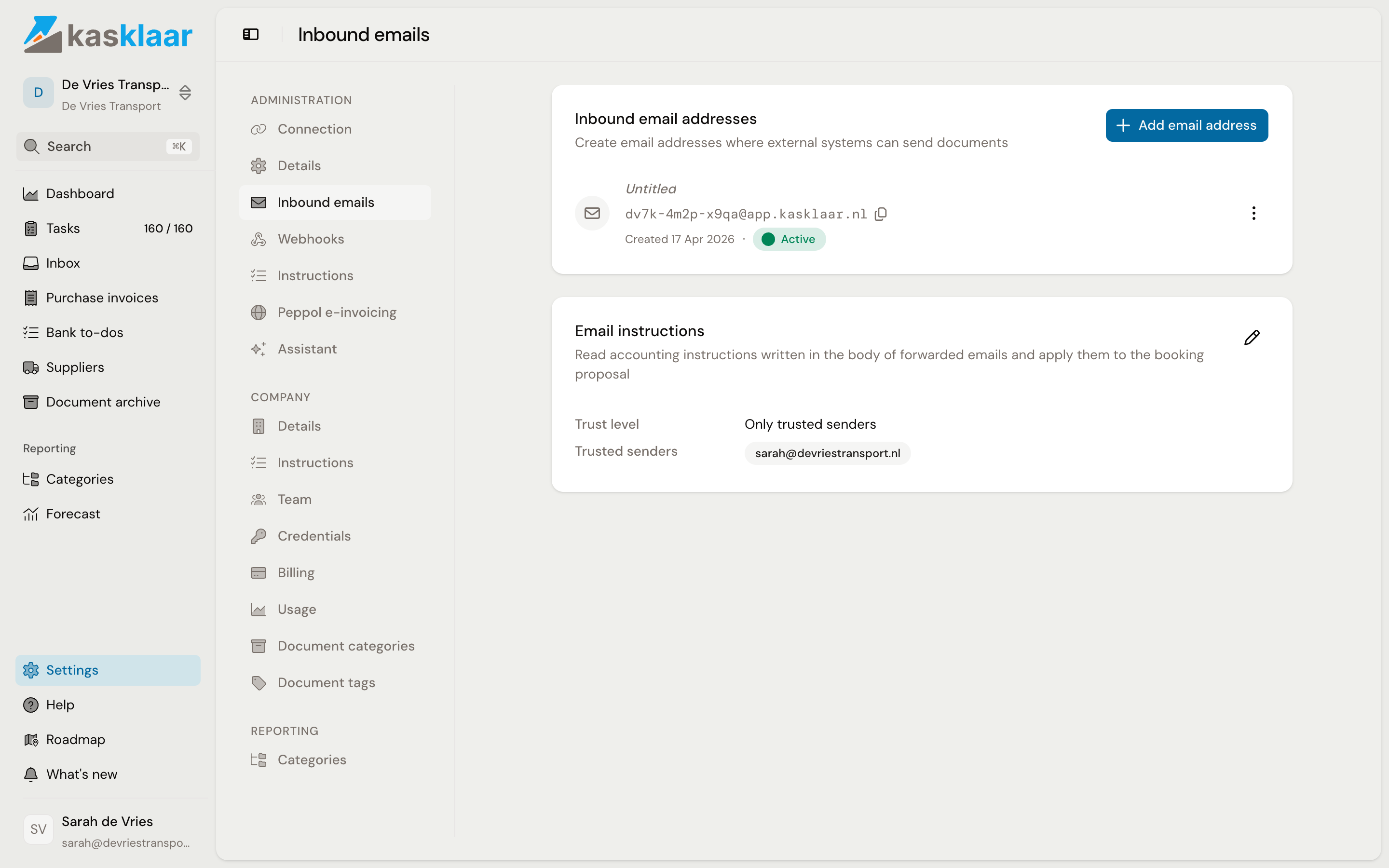
You cannot choose the address yourself. You can give it a label, and create more addresses with Add email address, for example one for your scanner and one for suppliers who may send directly. The menu behind an address lets you edit the label, switch the address off temporarily with Deactivate, or remove it.
Forwarding
- Open the email with the invoice and choose Forward in your email program.
- Paste the Kasklaar address as the recipient and send.
- Open Inbox in Kasklaar. The attachment is there shortly after, first under Processing and then under Needs review.
Every attachment becomes its own document. Forward an email with three invoices and there are three documents in your Inbox. What Kasklaar accepts: PDF, XML, JPG, PNG, WebP, TIFF and HEIC, up to 20 MB per attachment.
Your agents look at each attachment separately and give a recommendation per document, shown in the Inbox under Action: Approve for an invoice, receipt or credit note, Archive for a contract, policy or other business document, Ignore for a payment reminder, and Review when they are unsure or when it is a proforma. If one email holds both the invoice and the payment receipt for the same purchase, they keep the invoice and leave the receipt. The same goes for the same invoice twice, as a PDF and as a scan, and for logos and signatures from the email footer: those do not show up in the Inbox.
A supplier can use the address directly too. Pass it on, and their invoices come in without you forwarding anything. If you also want those invoices processed straight away without looking at them, you arrange that in the Inbox at the first invoice; see Reviewing documents in the Inbox.
Sending an instruction in the email
If you already know how the invoice should be booked, type it at the top of the email, above the forwarded message. Your agents pick up five kinds of instruction:
- How to book it: "book to entertainment", "these are travel costs", or a GL account number such as "book to 4500100".
- Cost center: "cost center Eindhoven" or "for the Amsterdam office".
- Cost unit or project: "project Phoenix" or "cost unit fleet".
- VAT: only when you say it explicitly, such as "VAT reverse charged", "0% VAT" or "9%".
- Supplier: when the sender is not the supplier, "this is from Paddle.com".
Several in one sentence is fine: "Book to marketing costs, cost center Eindhoven, VAT reverse charged." A plain "please process" or "thanks" is not an instruction. What your agents did with it appears as a notice on the purchase invoice, with Show original for the text of the email.
Whether Kasklaar reads the text of the email is up to you. Open Settings, Administration, Inbound emails and choose the Trust level under Email instructions:
- Off: the text of the email is never read.
- Require a safe word: only what follows a word you choose, for example "kasklaar: book to entertainment".
- Only trusted senders: only from emails sent by addresses or domains you list, such as your own address or @yourcompany.com.
- Trust any email: from every email. Do not choose this when suppliers send directly to the address, because then anyone who knows the address can send a booking instruction along.
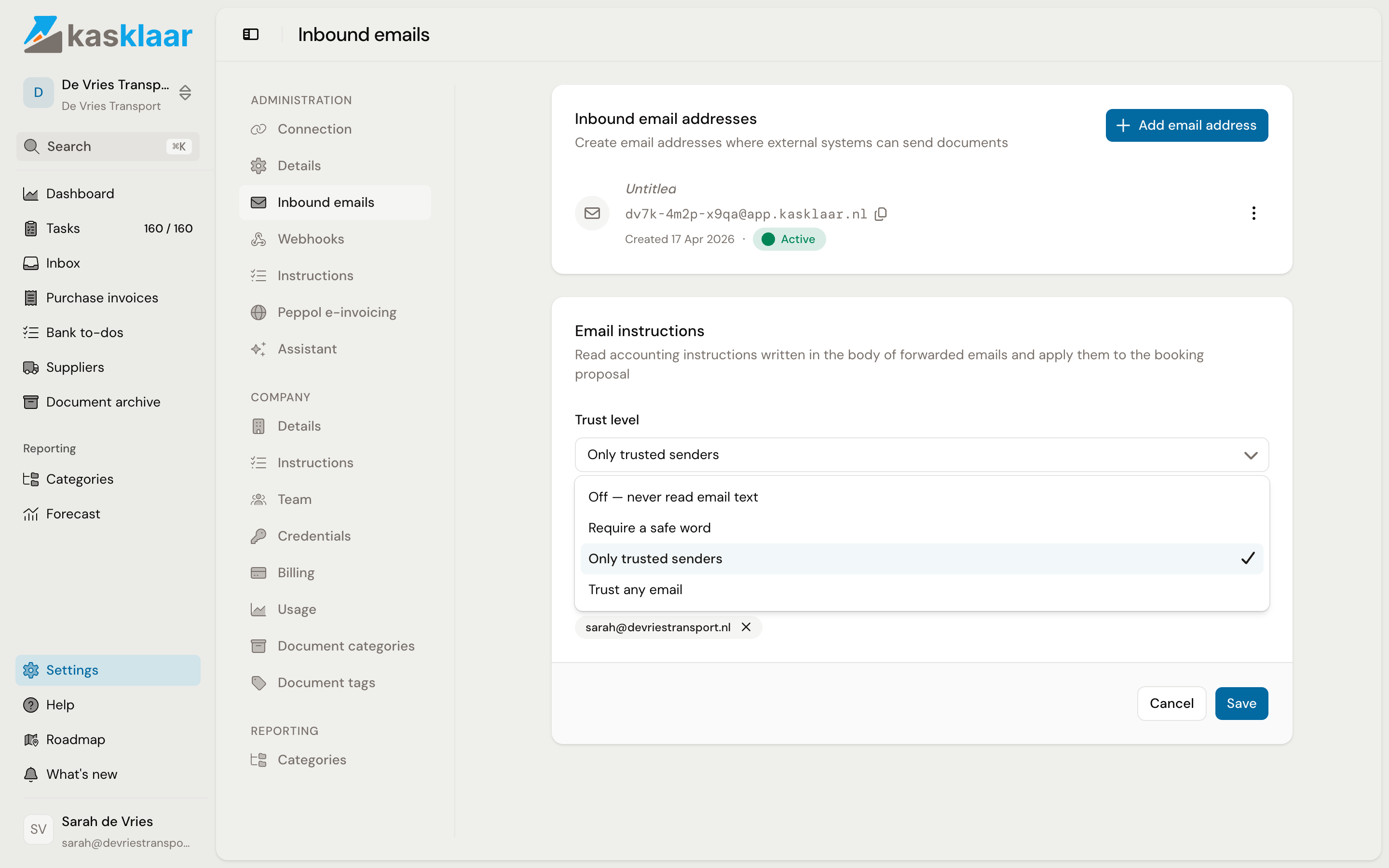
The trust level applies to email only. A caption on a photo sent via WhatsApp is always read, because your phone is already linked to you; see Sending documents via WhatsApp.
What does not work
An email without an attachment produces no document. If the invoice is in the body of the email itself, save the email as a PDF and forward that. A ZIP, a Word or Excel file and an attachment over 20 MB are skipped. You find such emails in the Inbox under the Skipped tab, with the reason; see Reviewing documents in the Inbox.
Frequently asked questions
Can I change the address? No. If you want a different address, create a new one and deactivate the old one.
Does this work with Peppol too? Peppol does not go through this address. For that you register your administration separately; see Enable Peppol e-invoicing. What comes in through Peppol does appear in the same Inbox.
Does this work via WhatsApp too? Yes, with a linked phone. Photos and PDFs you send to the Kasklaar number land in the same Inbox and the caption counts as an instruction; see Sending documents via WhatsApp.
See also
- Reviewing documents in the Inbox
- Sending documents via WhatsApp
- Add a purchase invoice, for uploading without email.