Reviewing documents in the Inbox
See what came in by email, Peppol or WhatsApp and decide whether it becomes a purchase invoice, goes into the archive, or can go
The Inbox is the waiting room for everything that comes in by email, through Peppol or via WhatsApp. Your agents look at each document, say what it is and propose what should happen to it. You confirm, and the document becomes a purchase invoice, goes to the Document archive, or disappears.
Where to find it
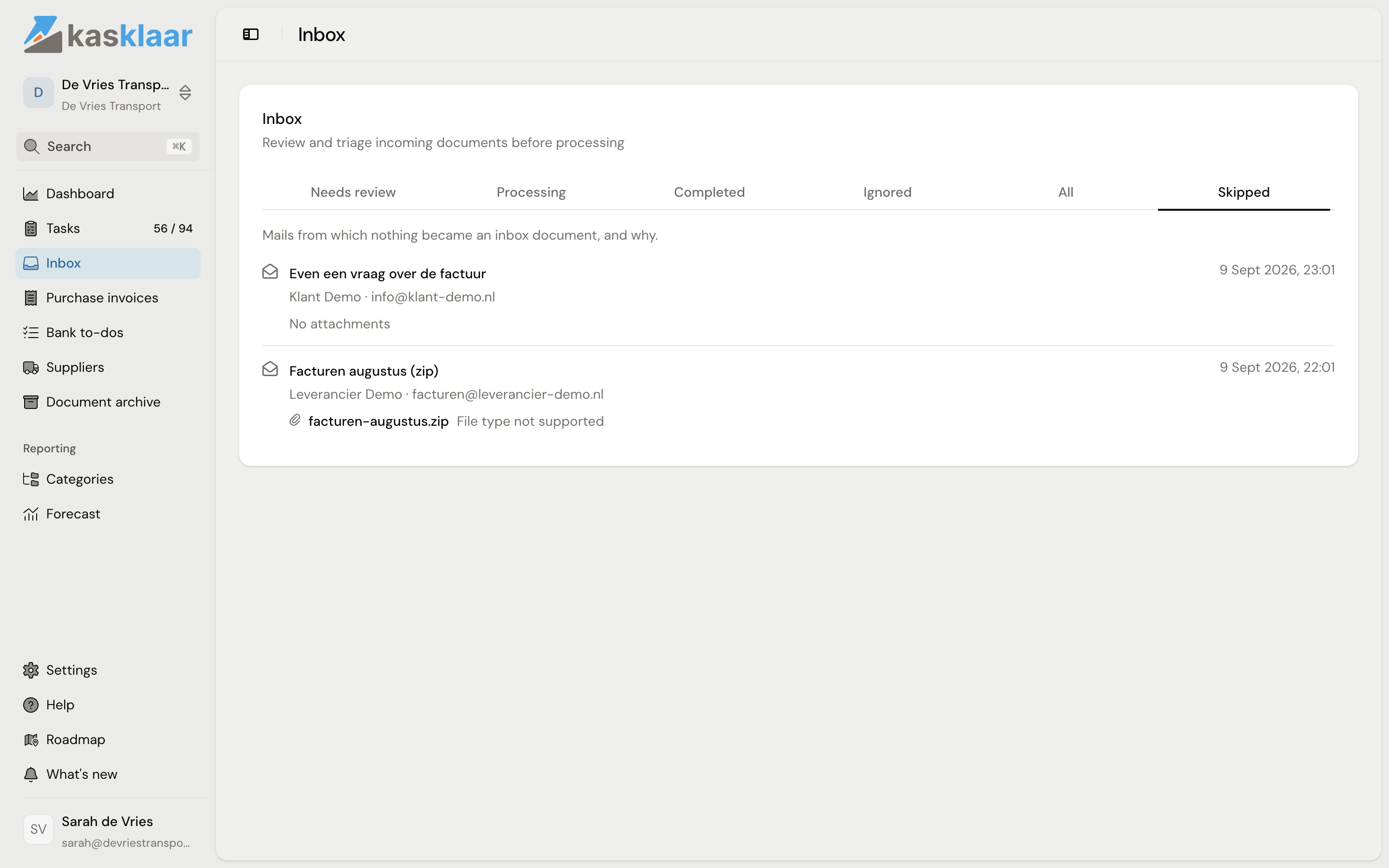
Open Inbox. The Needs review tab holds everything waiting for you. Processing shows what your agents are still looking at, Completed what has already become a purchase invoice or an archived document, Ignored what you dismissed or blocked, Skipped the emails that produced no document.
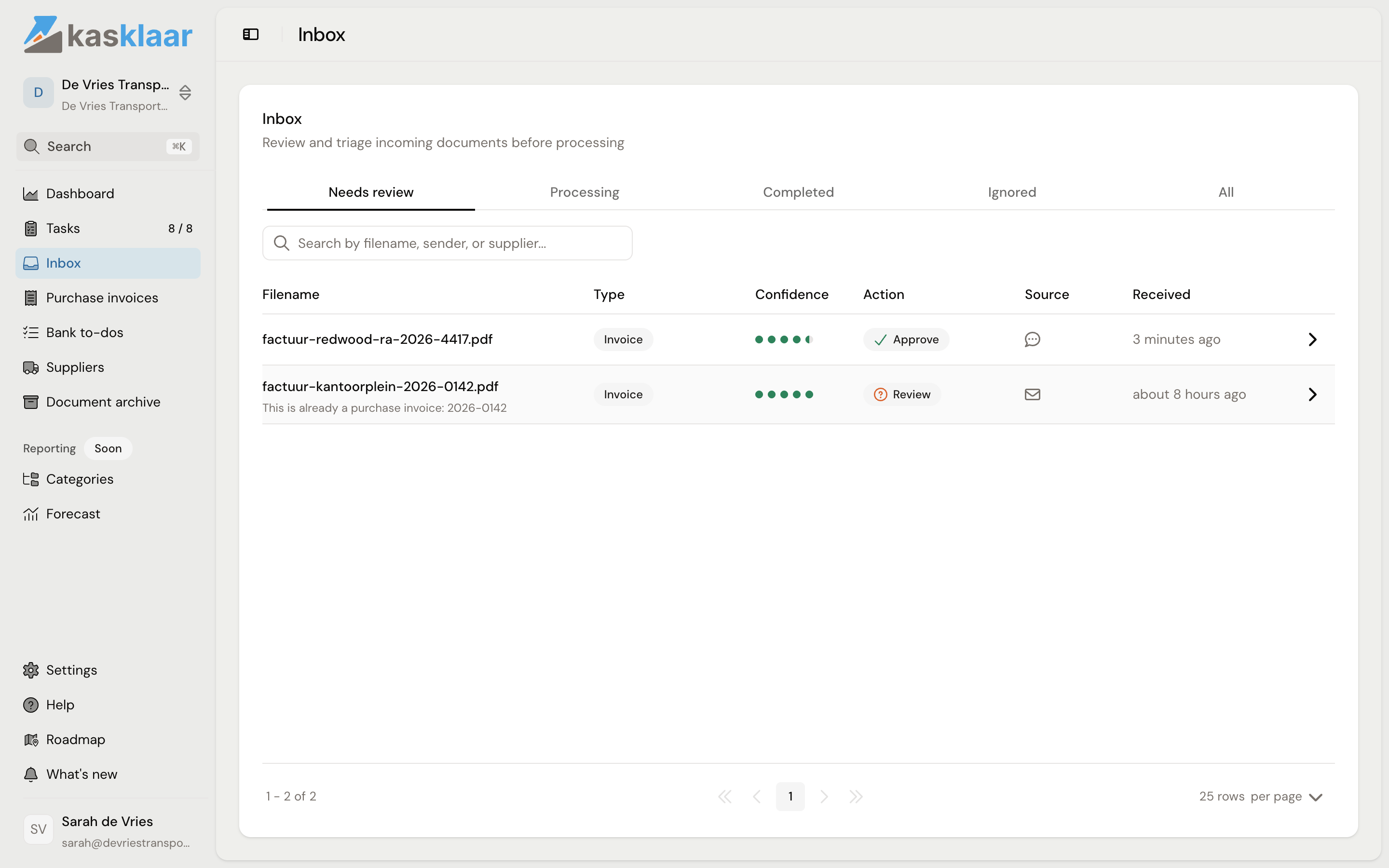
For each document you see the Type your agents recognise, such as Invoice, Receipt, Credit note or Business document, their Confidence, the Source (email, Peppol, WhatsApp or webhook) and under Action what they propose: Approve, Archive, Ignore for a payment reminder, or Review when they are unsure.
Reviewing a document
Open a document from the list. The file is on the left, what your agents make of it on the right.
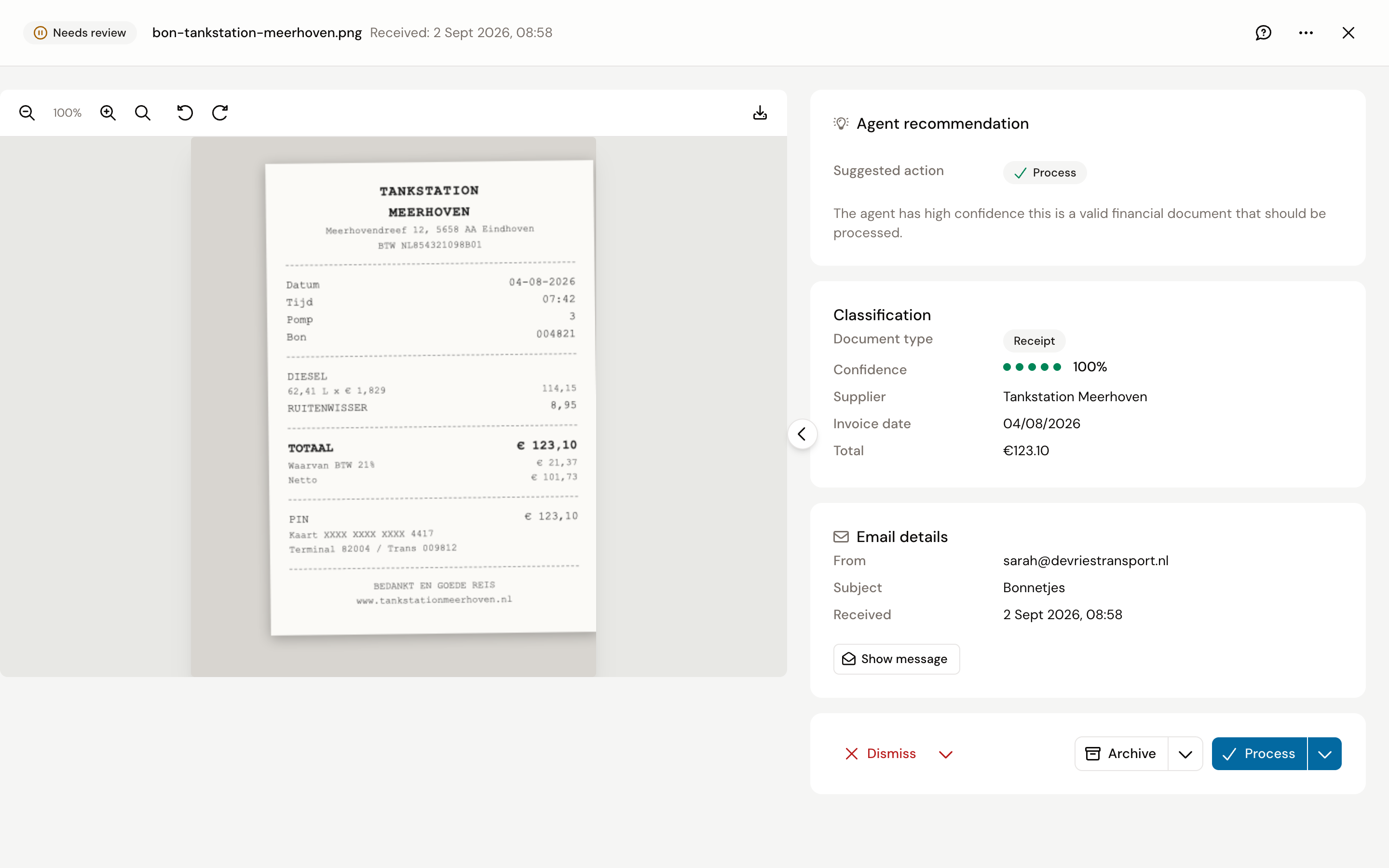
- Agent recommendation: what they propose and why, in one sentence. If it says the file is already in your Inbox or among your purchase invoices, click Open the other one before doing anything.
- Classification: the document type, the confidence, and what has already been read from the document: supplier, invoice number, date, total.
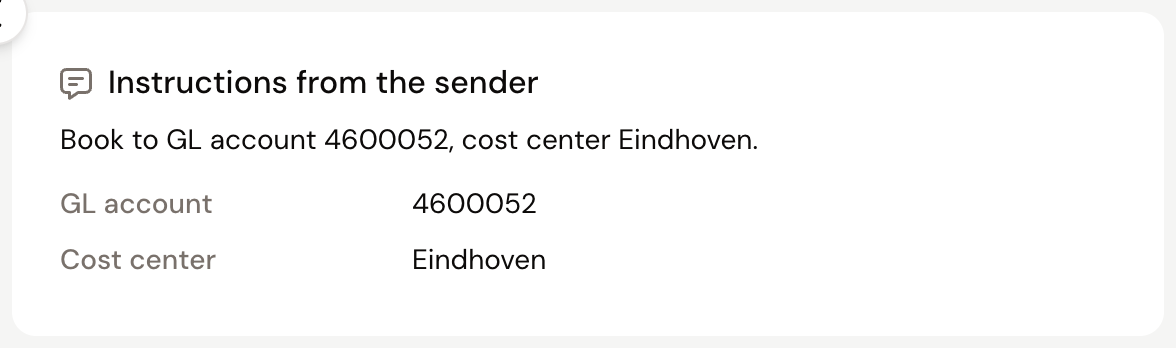
- Instructions from the sender: only shown when the email or the WhatsApp caption contained a booking instruction Kasklaar was allowed to read, for example "book to entertainment, cost center Eindhoven". You see what your agents took from it, summarised in one sentence; click Show message for the literal text. It is applied at the booking proposal, after you click Process. Which emails are read is a setting; see Forward documents to your Kasklaar address.
- Email details: who sent the email, the subject, and with Show message the text of the email.
- WhatsApp details: for a document from WhatsApp, the sending number, the time and your caption.
At the bottom are three buttons:
| Button | What happens |
|---|---|
| Process | The document becomes a purchase invoice. You find it under Purchase invoices, first under Processing, then under Needs attention |
| Archive | The document goes to the Document archive, for contracts, policies and other papers that are not invoices |
| Dismiss | The document moves to Ignored. Nothing is booked |
After every choice Kasklaar opens the next document that is waiting.
Handling a sender automatically from now on
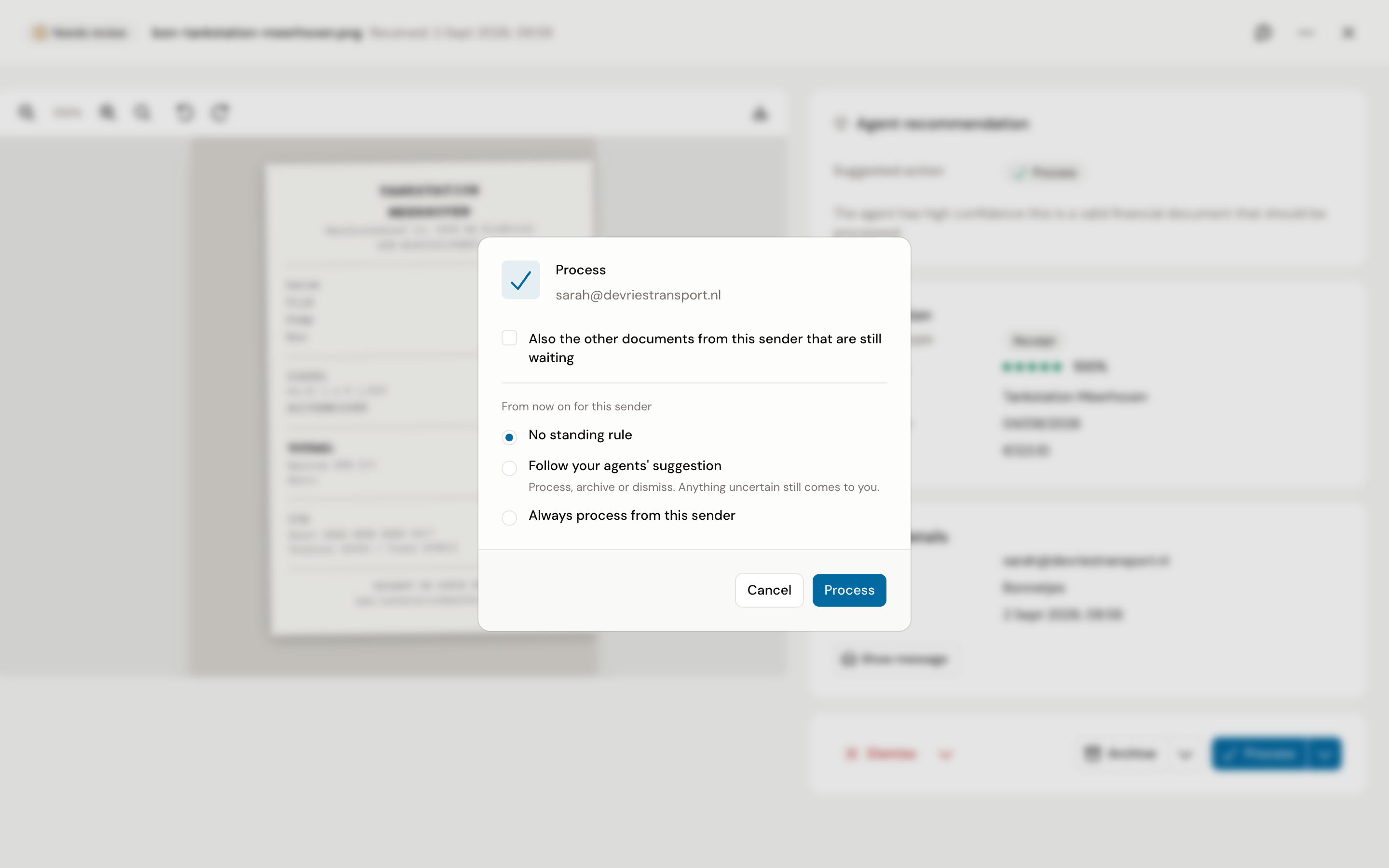
If the same sender keeps sending the same kind of document, you do not have to review each one. Click the arrow next to one of the three buttons and choose For this sender.... You can then tick two things:
- Also the other documents from this sender that are still waiting: the choice applies right away to everything from this sender now in Needs review.
- From now on for this sender: choose Follow your agents' suggestion to let your agents pick between process, archive and dismiss, with anything uncertain still coming to you. Or choose Always process from this sender (or archive, or dismiss) to handle every next document from this sender without your review.
Such a choice becomes an instruction under Settings, Administration, Instructions, on the Incoming documents tab. You can adjust or switch it off there later; see Instructions.
Under the arrow next to Dismiss there is also Block this sender.... After that, everything from this address goes straight to Ignored with the label Blocked, without your agents looking at it and without the sender noticing. Use it for advertising and spam, not for a supplier.
Sender rules and blocking apply to email only. What comes in through a linked phone is always yours; see Sending documents via WhatsApp.
Emails that produced no document
The Skipped tab lists the emails to your Kasklaar address that did not become a document, with the reason for each: no attachment, or an attachment of a type Kasklaar does not accept, such as a ZIP. Click an email to read its text. Send the invoice again as a PDF or photo, or ask the sender to.
Frequently asked questions
What does Review under Action mean? Your agents are not sure what it is, or it is something they do not want to decide on, such as a proforma or a file they cannot read. Open the document and choose yourself.
It says "This document is already in your Inbox" or "This is already a purchase invoice". Kasklaar compares every new document with what is already there: in the Inbox, among the purchase invoices, among what has been booked, and in the archive. Open the other one, and dismiss the new one if it really is the same.
A document says Failed. Your agents could not read the file and the buttons are disabled. Send the document again, or upload it directly through Purchase invoices, Upload. If it keeps failing, contact Kasklaar.
I forwarded an email, but there is nothing in the Inbox. Usually there was no attachment, the invoice was in the body of the email, or it was a file type Kasklaar does not accept, such as a ZIP or a Word file. See Forward documents to your Kasklaar address.
Where do I see how many documents are waiting? Every waiting document is a task "Document pending review" under Tasks; the counter there includes them. The task closes by itself once you have reviewed the document.
Can I move a document that landed in the wrong administration? Yes. Open the document, click the menu at the top right and choose Move to administration....
See also
- Forward documents to your Kasklaar address
- Sending documents via WhatsApp
- Review and approve a purchase invoice, for what happens after Process.
- Instructions, for the rules per sender.