Instructions
Record once how your agents should book a kind of invoice, and that correction stops coming back
An instruction fixes what your agents do when booking: if an invoice meets a condition, they always do the same thing. Record once how your agents should book a kind of invoice, and that correction stops coming back.
Where to find them
Open Settings, Administration, Instructions. At the top are tabs: All, Invoice processing, Incoming documents, System and, if your accountant keeps your books, Accountancy firm.
Creating an instruction
An instruction has two parts: When says which invoices it applies to, Then says what your agents do.
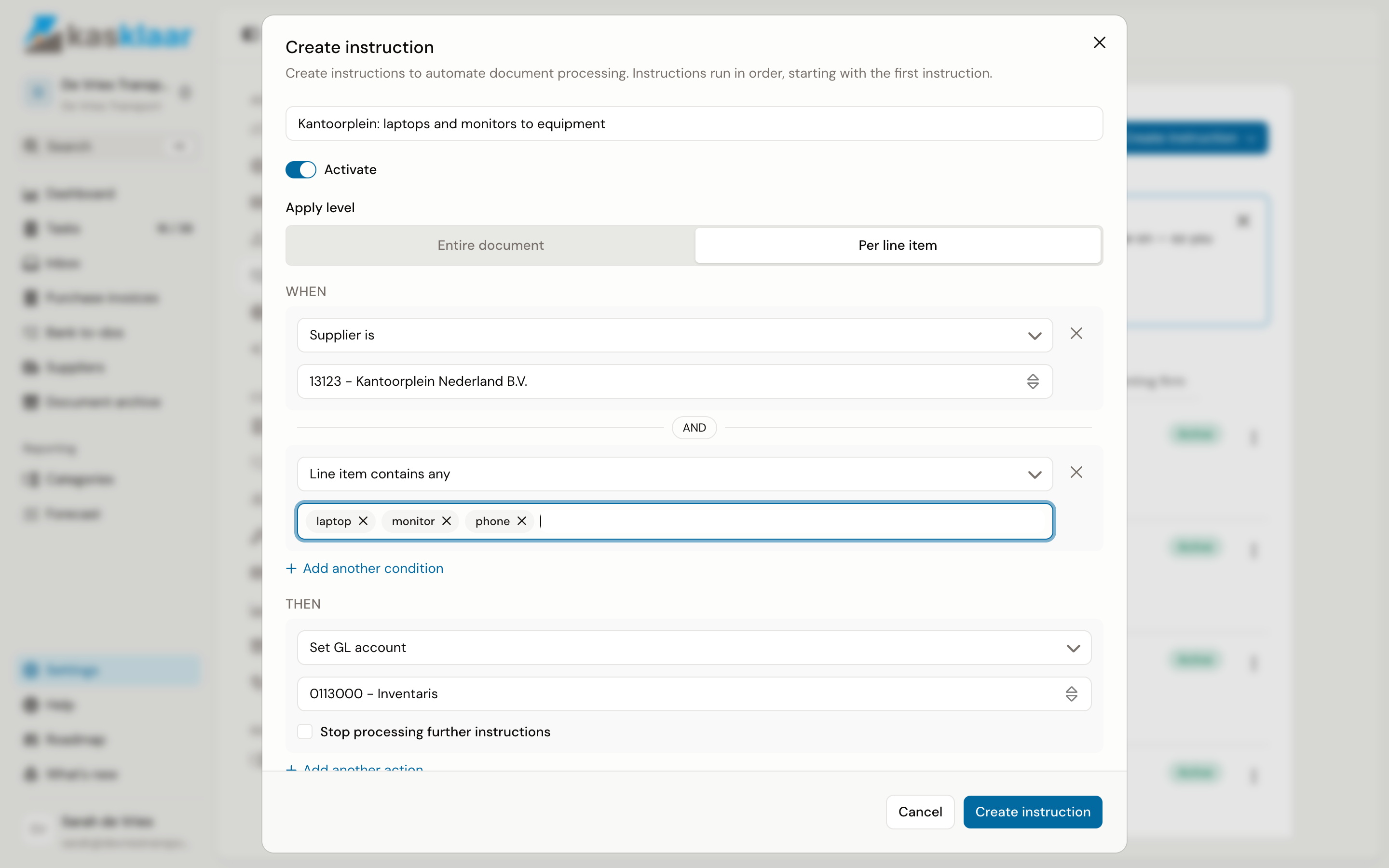
- Click Create instruction, choose Invoice processing and give the instruction a name.
- Under When, choose what the instruction looks at. Several conditions are allowed; they then all have to be true.
- Under Then, choose what your agents do when it matches.
- Click Create instruction.
What you can choose under When:
| Condition | Applies to |
|---|---|
| Supplier is | All invoices from one supplier in your list |
| Description contains any | Invoices whose description contains one of the words you enter |
| Line item contains any | The same, but per invoice line |
| Amount is between | Invoices with a total, including VAT, between two amounts. Fill in both; for "and above" pick a generous upper limit |
| Expense nature | Invoices or lines that your agents place in a certain expense category |
| Always apply | Every invoice |
What you can choose under Then:
| Action | Does |
|---|---|
| Set GL account | Fixes the GL account, so your agents no longer have to guess it |
| Set VAT code | Fixes the VAT code |
| Set cost center, Set cost unit | The same for cost centre or cost unit, if your administration uses them |
| Set detail level | Sets how the invoice lines are laid out: one summary line, all detail lines, grouped by VAT code or by expense category |
| Show a notice | Puts a text of yours on the booking proposal, for example a reminder to check something first |
| Agent GL assignment, and the same for cost centre and cost unit | Fixes nothing, but gives your agents a hint in plain language, for example "book this to the balance sheet if it is over 450 euros". Your agents then choose |
| VAT lookup | Picks the VAT code by type and percentage, for example "non-deductible, 9%", instead of one fixed code |
Under Apply level you choose whether the instruction looks at the whole invoice (Entire document) or at each line separately (Per line item). Choose Per line item when one invoice contains lines that belong on different accounts.
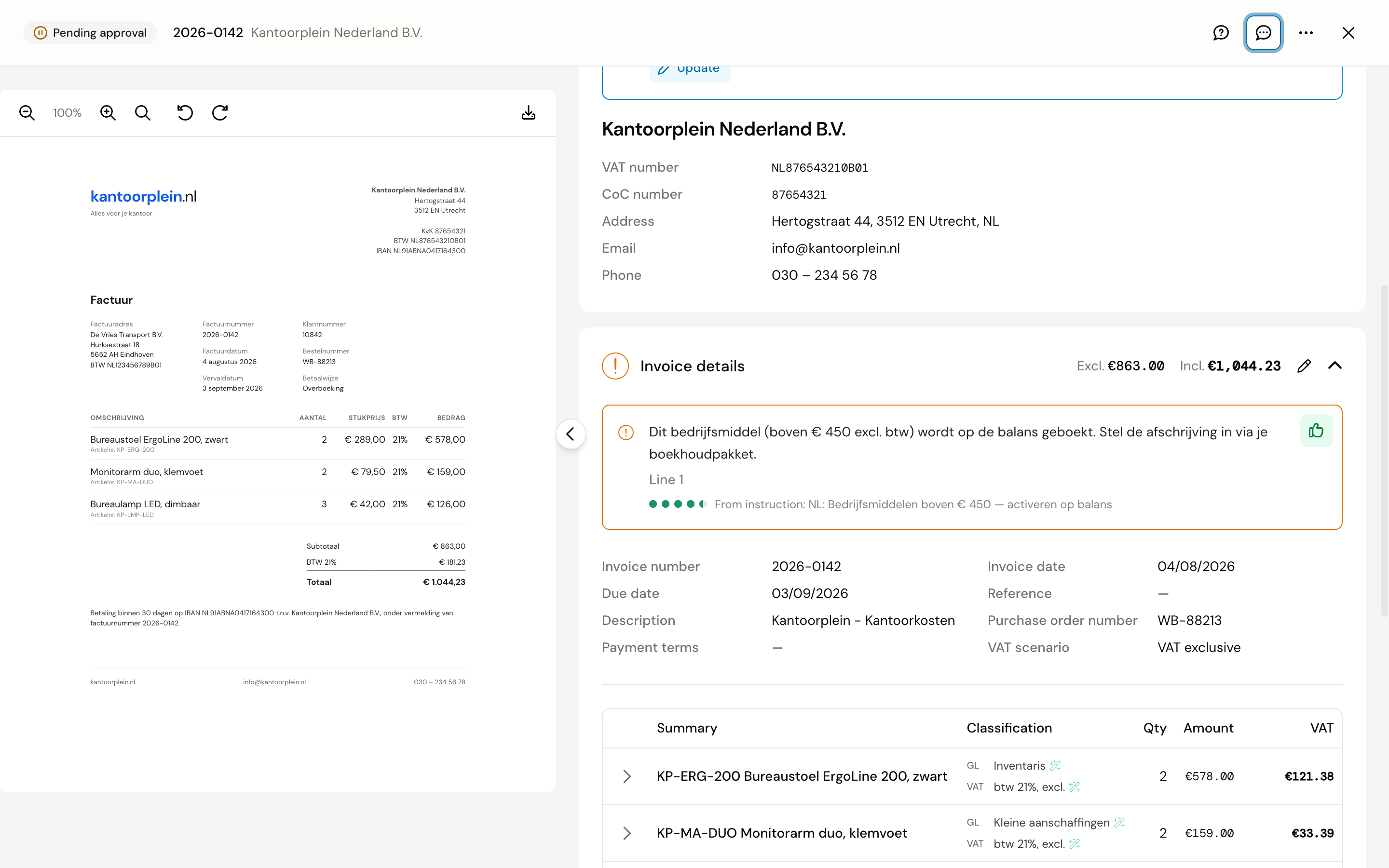
If you choose Show a notice, type the text under Notice message and choose under Severity what the notice does: Blocks approval (red, resolve before you can approve), Requires review (orange, read and decide yourself) or Informational (blue, information only).
Three examples of situations where your agents have to guess without an instruction:
- A web shop where you order everything. From a laptop to coffee, all on one supplier. When Supplier is that shop and Line item contains any "laptop, monitor, phone", then Set GL account to equipment. Set Apply level to Per line item, so the coffee stays on the usual account.
- Large amounts need a second look. Your agents see no difference between an invoice of 50 euros and one of 50,000. When Amount is between 5,000 and 1,000,000, then Show a notice "Discuss before approving", with Severity on Requires review.
- One invoice with costs that belong apart. Your telecom invoice has a subscription, usage and a handset, and your agents prefer to merge those into one line. When Supplier is your telecom provider, then Set detail level to Keep all detail lines. For telecom, rent and software, Kasklaar already suggests this instruction itself; see Suggestions from your agents.
Instructions run in order, the top one first. If no other instruction should run after one, tick Stop processing further instructions on that action.
What you see on an invoice
From the moment you save, your agents apply the instruction to every new invoice that meets the conditions. On the booking proposal, the line then says "GL account 4600051 (Hosting) was assigned by an instruction", with the name of the instruction underneath. A notice from an instruction appears as a block next to the invoice details, with "From instruction: [name]".
What was already booked stays as it is. An instruction does not work retroactively.
Editing, switching off or deleting
In the list, click the menu next to an instruction.
- Edit instruction opens the same form. Changes apply straight away to new invoices.
- Deactivate switches the instruction off. Kasklaar asks for a reason, so your team can see why later. The instruction stays in the list with the Inactive label, and Activate switches it back on.
- Delete removes the instruction, after a confirmation. It cannot be brought back, so if in doubt, use Deactivate.
For each instruction the list shows how often it was applied and when it last was.
Common questions
What are Company and Accountancy firm for instructions? Administration applies to this one administration, Company to all your administrations, Accountancy firm is what your accountant sets up for you. If several match one invoice, the most specific one wins. GL accounts and suppliers belong to one administration, so you only choose those at the Administration level.
What is on the System tab? The instructions Kasklaar ships for Dutch rules, such as VAT on food and drink that you cannot deduct, or assets over 450 euros that belong on the balance sheet. You cannot edit them, but you can switch them off per administration: open the instruction, click Opt out and give a reason if you like. The same button puts it back later.
How do the suggestions at the top of the list get there? Your agents watch how you book and propose the patterns they see as instructions. What to do with them is in Suggestions from your agents.
Can I create an instruction for incoming email? Yes, with Create instruction, Incoming documents. The conditions are then From email address or Inbound webhook. How that works is in Reviewing documents in the Inbox.
See also
- Suggestions from your agents
- Review and approve a purchase invoice, for what a notice on an invoice does.