Split several invoices out of one PDF
Cut one PDF holding several invoices into separate purchase invoices
When a supplier sends one PDF with several invoices in it, or you scan a stack in one go, you do not want to book that as a single invoice. On the Split PDF tab you mark where each invoice begins. Kasklaar cuts the file up and files every part as its own purchase invoice.
Before you start
- The file has to be a PDF and can be at most 25 MB.
- You split one PDF at a time. If you have several bundles, do them one after another.
- For separate invoices use the Documents tab, and for a UBL file the E-invoice tab.
Open the Split PDF tab
- Open Purchase invoices and select Upload.
- Go to the Split PDF tab.
- Drag the PDF into the box, or select the box to pick a file.
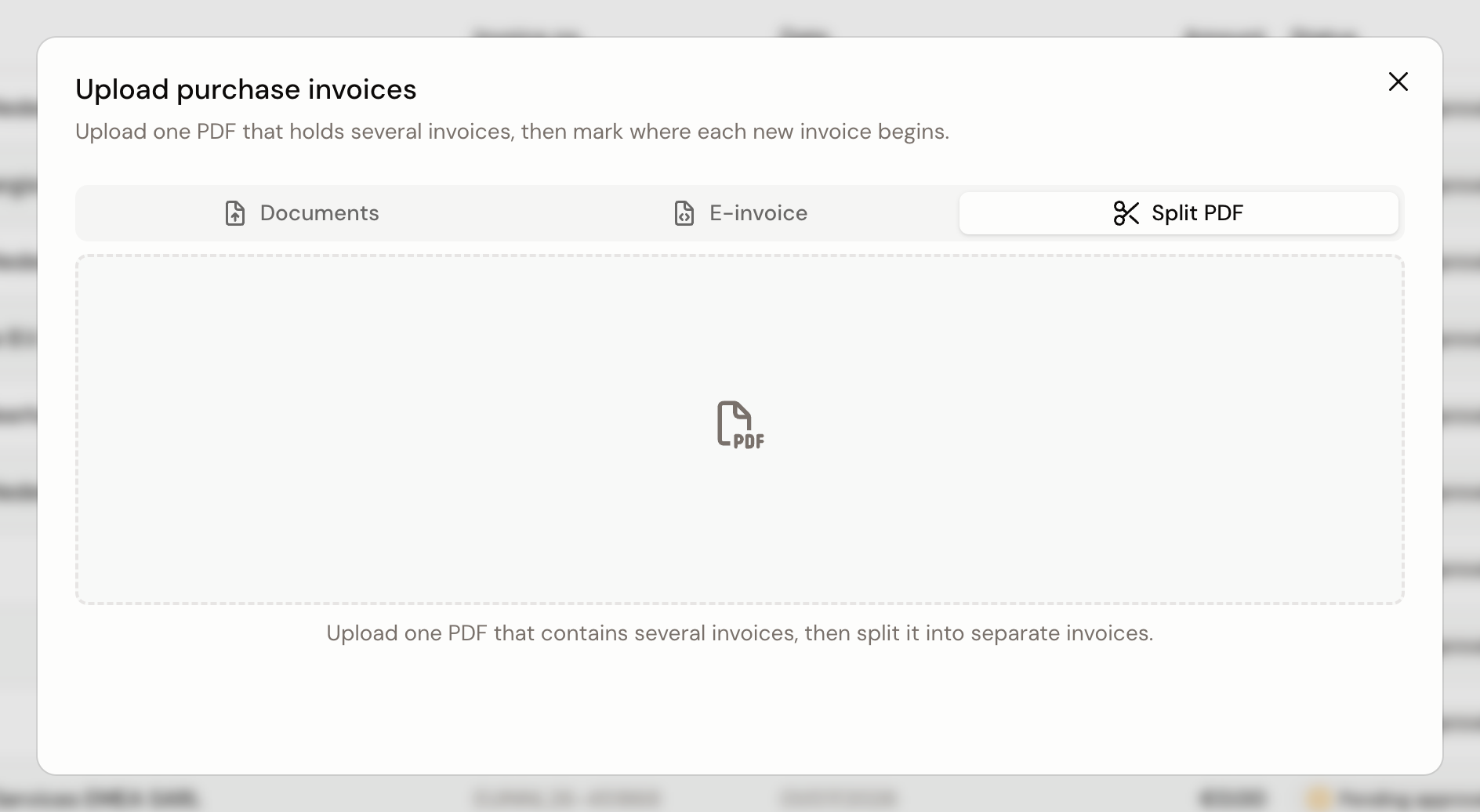
As soon as you pick a PDF, the Split PDF into invoices workspace opens.
Mark where each invoice begins
The pages sit next to each other in a strip, with a pair of scissors between every two pages. Pages that belong to the same invoice share a color and sit under the same label: Invoice 1, Invoice 2, and so on.
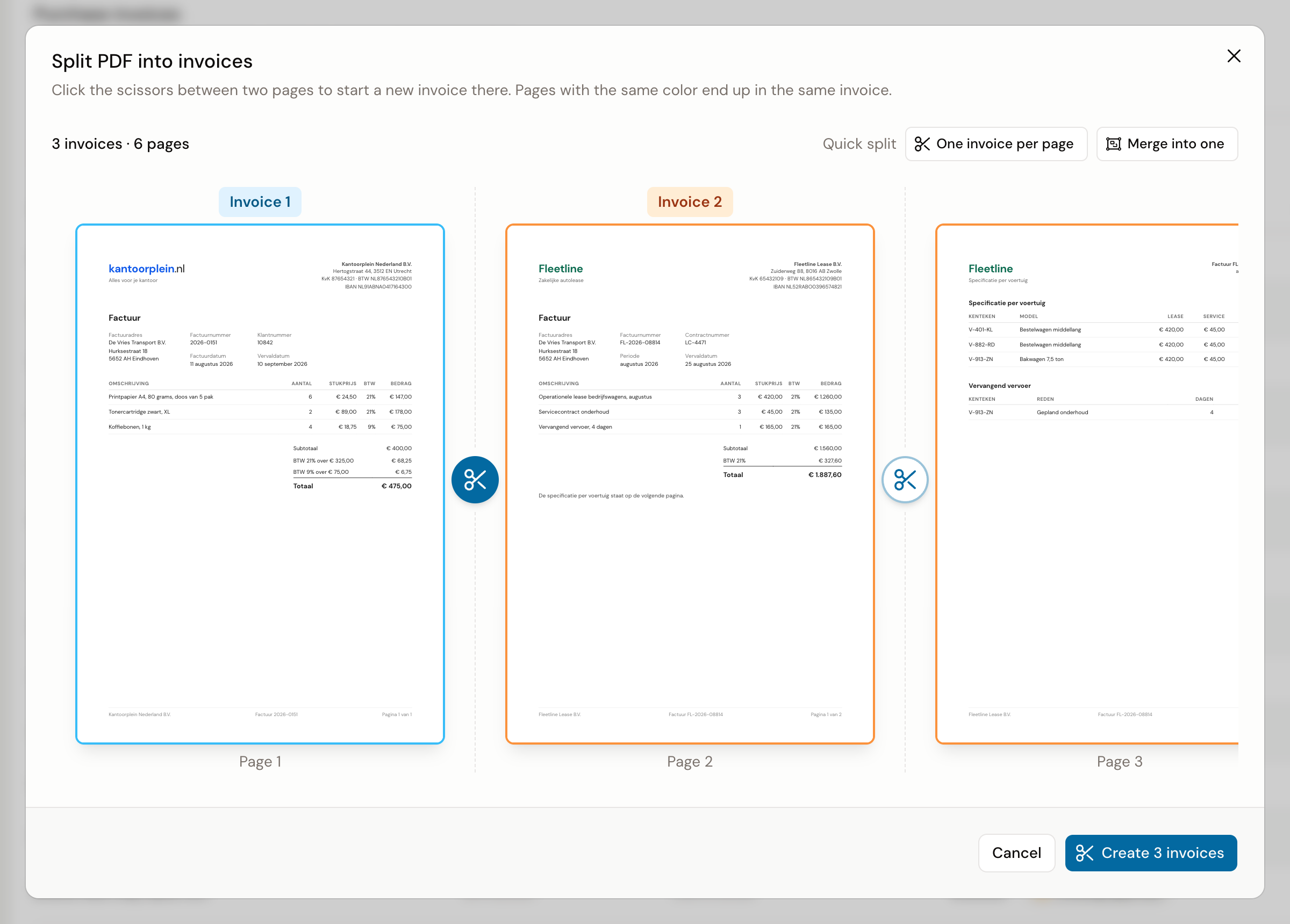
- Walk through the pages and select the scissors between two pages wherever a new invoice begins.
- If there is one cut too many, select the same scissors again. Those two pages then belong to the same invoice once more.
- If the bundle consists of single-page invoices, use One invoice per page under Quick split. To start over, Merge into one puts every page back into a single invoice.
Above the strip sits a counter in the form 3 invoices · 6 pages. It follows whatever you mark. Check that counter before you continue: the number of invoices it shows is the number you create.
Create the invoices
At the bottom, select the button carrying the count, for example Create 3 invoices. The splitting happens in your browser, so a heavy PDF takes a while. If you would rather not split after all, select Cancel; nothing changes about the original PDF.
Each part then appears as a separate file in the list below the upload box, named after the original PDF. Every file is uploaded as its own purchase invoice, and your agents prepare a booking proposal for it. You find them back on Purchase invoices, first under Processing and then under Needs attention.
The original PDF is not uploaded itself. Only the parts you marked arrive as invoices.
If one of the parts fails to upload, that shows on the file in the list and you can retry it there. Close the upload dialog only once the list has finished.
When it does not work
| Symptom | Check | Next step |
|---|---|---|
| "Could not read this PDF." | Whether the file really is a PDF, and whether it is locked with protection or a password | Save the file again as a plain PDF and try once more |
| "Could not split this PDF. Please try a different file." | The same file in a PDF reader | Export the bundle again from the source and try with that |
| The file will not go into the box | The size and the type: PDF only, at most 25 MB | Cut the bundle into smaller PDFs outside Kasklaar first |
| The pages stay on Loading PDF… | How many pages the bundle has | A heavy PDF takes longer to build the strip. If it stays stuck, close the dialog and try again |
| A created invoice holds the wrong pages | The Needs attention tab | Reject those invoices and split the original PDF again, with the right cuts |
Related
Was this helpful?