Upload e-invoice
Hand in a UBL XML and let Kasklaar pull out the embedded PDF
You hand in an e-invoice as a UBL XML, on the E-invoice tab of the upload dialog. The XML is required, a visual document is optional. When the XML holds a PDF, Kasklaar pulls it out and fills in the visual document for you.
Upload an e-invoice
- Open Purchase invoices and click Upload.
- Go to the E-invoice tab.
- Drag the UBL XML into the UBL XML field, or click it to browse. The field only takes
.xml, up to 2 MB. - Look at the Visual document (optional) field. It usually holds something already, see the next section.
- Click Upload e-invoice.
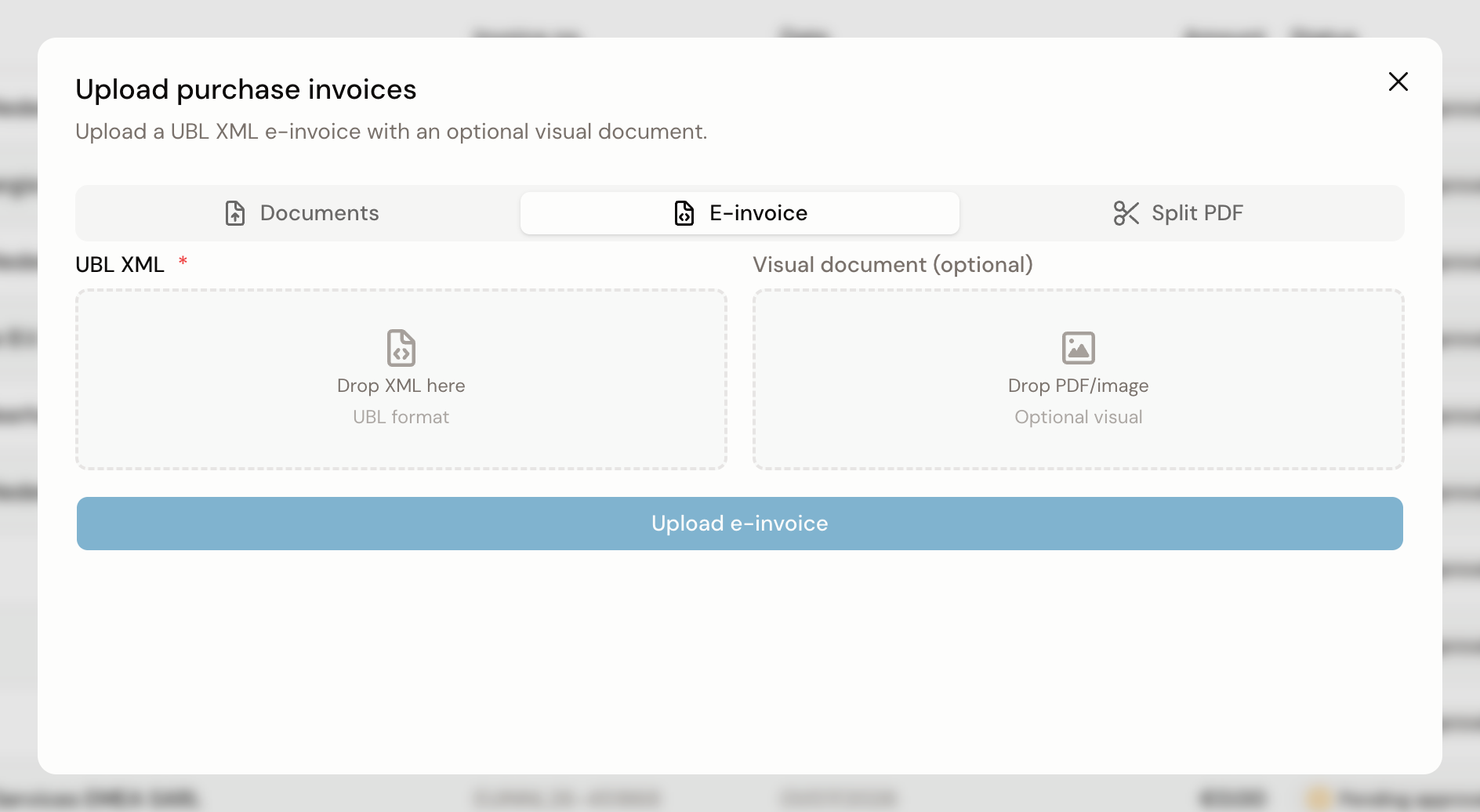
Without an XML, the Upload e-invoice button stays disabled. The dialog closes once the upload is done and the invoice sits under Processing until your agents have finished the booking proposal.
The PDF inside the XML
Many suppliers put a PDF of the invoice inside the XML itself. As soon as you drop the XML into the field, Kasklaar checks whether such a PDF is in there. When it finds one, it lands in the Visual document field with an Included badge next to it.
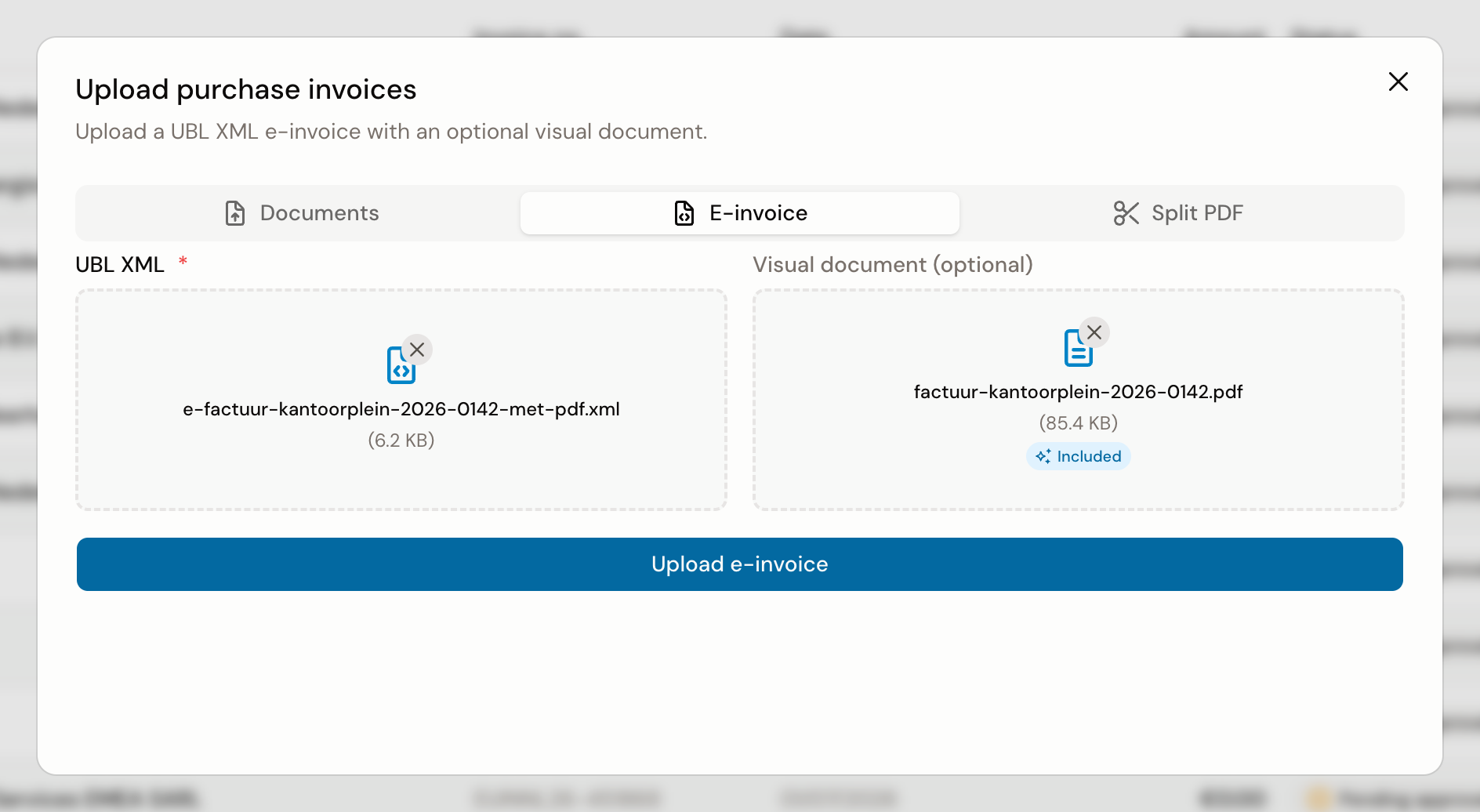
The PDF is taken out of the XML and sent along separately. That is why the XML in the field is smaller than the file you dropped in. Nothing went wrong, it is the same content in two files.
What else to know about that field:
- Only a PDF is carried over. When the XML holds an image instead of a PDF, the field stays empty.
- When you already picked a visual document yourself, it stays and is not replaced.
- To use a different document, click the cross on the file and drag in your own PDF, JPG or PNG, up to 10 MB. The Included badge then disappears.
- When there is no PDF in the XML, add one yourself. During review it puts the invoice next to the booking proposal.
When a supplier sends you the same invoice by mail and over Peppol, do not upload both: on the second proposal Kasklaar reports a possible duplicate at 100% match. What to do with that notice is in the article on duplicate invoices.
Why does an e-invoice run differently from a PDF?
A PDF or a photo goes through scan and recognize first: the document is read and the data is pulled out of it. In an e-invoice, the invoice number, the amounts, the VAT and the lines are already structured in the XML. Your agents skip that step and read the XML directly.
After that there is no difference. The proposal is built the same way and runs through the same checks, and you review and approve it like any other purchase invoice.
When it does not work
| What you see | Where to look | What to do |
|---|---|---|
| The Upload e-invoice button stays disabled | Whether a file sits in the UBL XML field | The XML is required, the visual document is not |
| The XML file does not land in the field | The extension and the size | The field only takes .xml, up to 2 MB |
| No Included badge, the field stays empty | Whether your supplier embedded a PDF | Not every e-invoice holds one. Add a PDF or image yourself, or upload only the XML |
| "Failed to upload e-invoice" | Nothing on your side | Try again |
| The invoice sits on the Failed tab | Whether it is about the XML | For an e-invoice this usually means the XML could not be read. Open it there and try again. If it keeps failing, ask your supplier to send the invoice once more |
Related
- Review and approve a purchase invoice, for what you do once the booking proposal is ready.
- Single PDFs and photos do not belong on this tab, you upload those under Documents.
- When one PDF holds more than one invoice, use the Split PDF tab.
- Receiving e-invoices without uploading them yourself runs over Peppol, covered under Integrations.
- What to do with a duplicate notice is in the article on duplicate invoices.
Was this helpful?