Upload a PDF or photo
Add PDFs and photos of invoices, one invoice per file
The Documents tab of the upload dialog is where you add PDFs and photos of invoices, several at a time. Each file becomes one purchase invoice that your agents build a booking proposal for.
Add your files
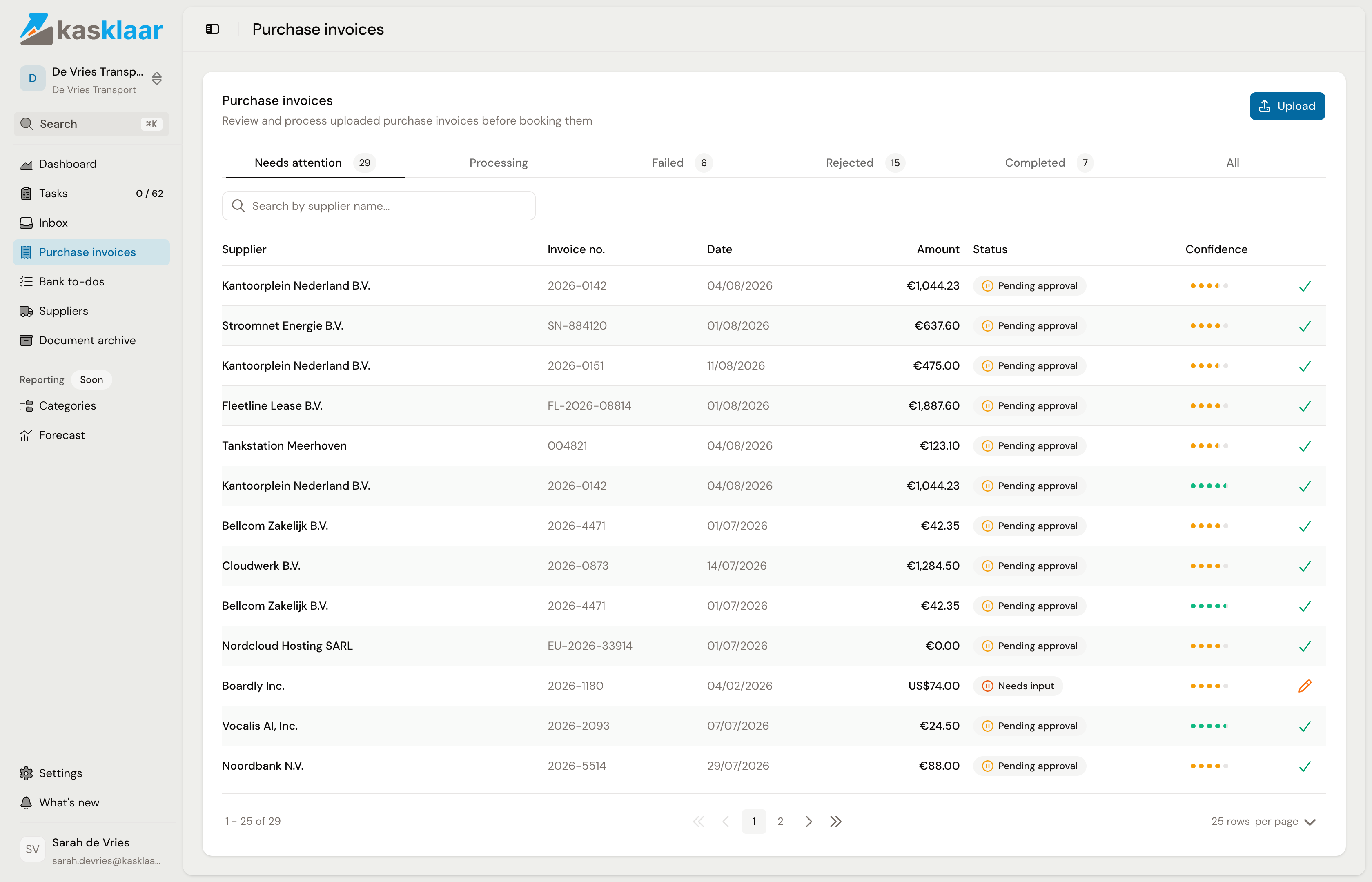
- Open Purchase invoices and click Upload in the top right.
- Stay on the Documents tab. Every file you add here becomes one purchase invoice.
- Drag your files onto the area marked Drag and drop invoices here, or click it to pick them. You can add several files at once.
- Each file appears under Files with a progress bar. Uploading starts straight away, there is no submit button.
- Wait until every file has a green check mark, then close the dialog. The dialog stays open while a file is still uploading.
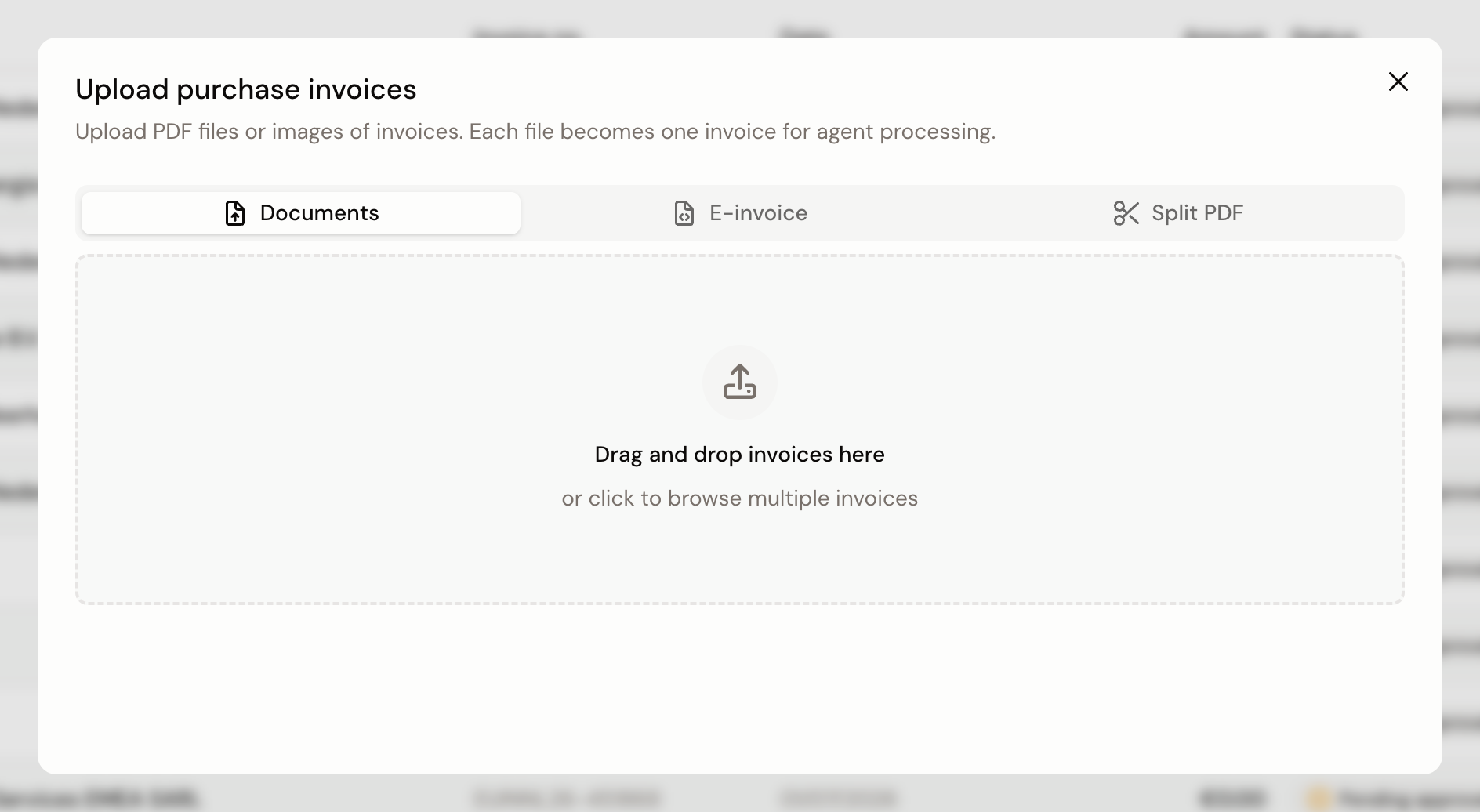
Kasklaar accepts PDF, JPG and PNG, up to 10 MB per file. A photo or scan of a receipt counts too. There is no limit on how many files you add at once. A file of another type, or one over 10 MB, does not appear in the list.
What happens next
The invoice lands on the Processing tab. Your agents read the document and build the booking proposal. That takes roughly thirty seconds to a minute, longer for a complicated invoice.
The invoice then moves to Needs attention, where it waits for you to check it. You do not have to stay on the page, the list updates by itself.
The same file twice
If the same file ends up in the file list of one dialog twice, you get the message "1 duplicate file skipped" and the file is uploaded once. Kasklaar compares the file name and the file size against what is already in the list. This is only about the list in front of you at that moment, and it is a different thing from the duplicate check that later looks at whether the same supplier with the same invoice number is already in your administration.
Close the dialog and open it again and the list starts empty. The same file is then uploaded again.
When it does not work
| What you see | Where to look | What to do |
|---|---|---|
| A file does not appear in the list | The type and the size of the file | Only PDF, JPG and PNG up to 10 MB are accepted. Convert another file type to PDF first |
| "1 duplicate file skipped" | Whether the same file was already in the list | If it was, there is nothing to do |
| A file gets a warning triangle | The line of text under the file name | Kasklaar retries the upload a few times by itself. If it still fails, retry the file with the button next to it |
| The dialog will not close | Whether a file is still uploading | Wait until every file has finished |
| The invoice stays in Processing for a long time | The Failed tab | Something went wrong while building the booking proposal. Open the invoice there |
Related
- Review and approve a purchase invoice, for what to do with the invoice once it reaches Needs attention.
- A UBL or Peppol e-invoice goes on the E-invoice tab, not on Documents.
- When one PDF holds several invoices, use the Split PDF tab.
- Invoices that arrive at Kasklaar by email are in Inbox.
Was this helpful?