Managing your team
Invite colleagues, choose whether they are a Member or an Owner, and remove someone who should no longer have access
Everyone who works on your administrations in Kasklaar is in your team. You invite someone by email, choose a role, and the invitee creates an account or signs in with an existing one. Only an Owner can manage the team.
Where to find it
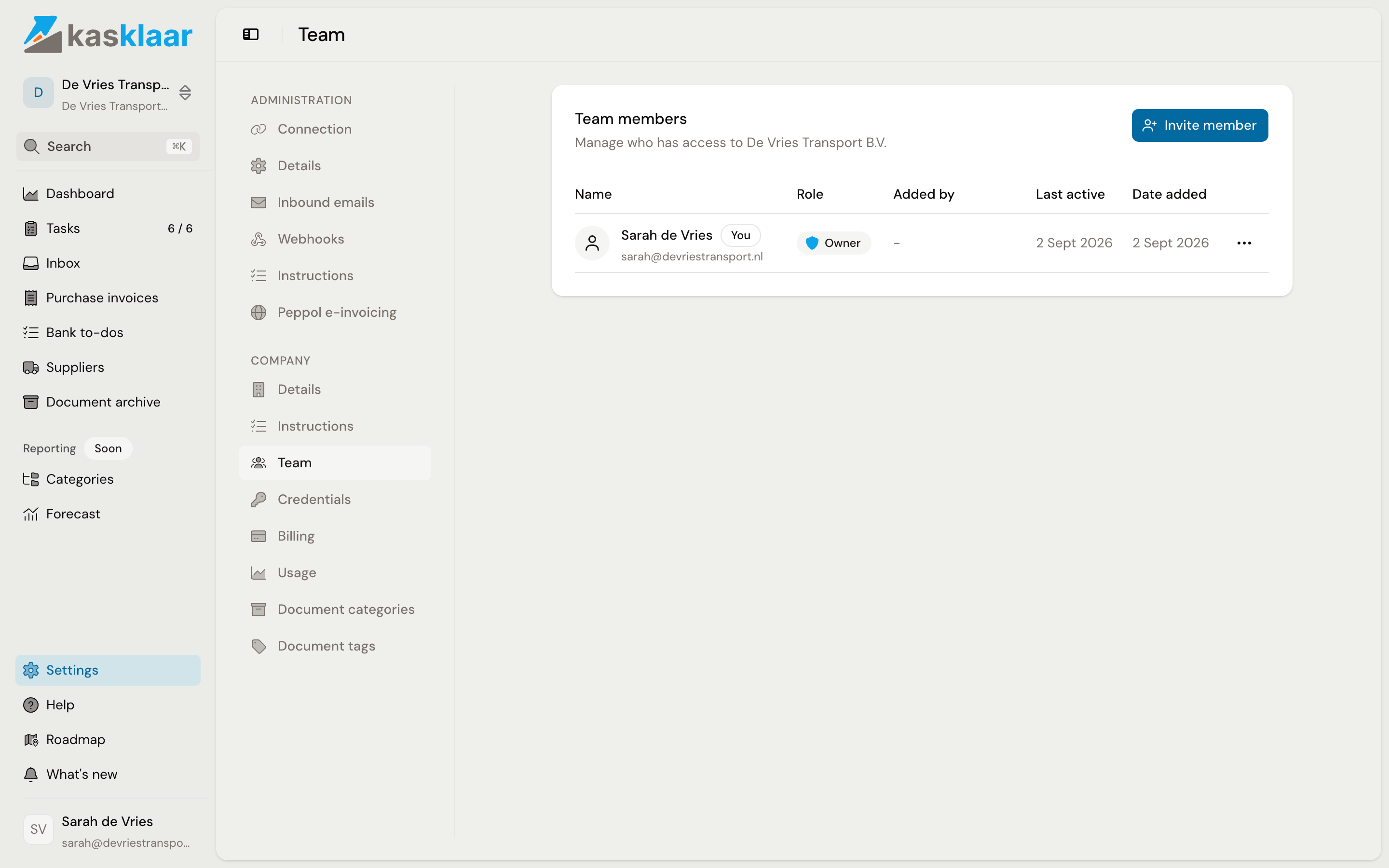
Open Settings and choose Team under Company. For each team member you see the name and email address, the Role, who added them, when they were last active and the date they were added. Your own name carries the label You.
The two roles
- Member: can view and manage invoices, process documents and change the settings of an administration.
- Owner: everything a Member can do, plus team management: inviting, changing roles, removing members and adding administrations.
A Member does not see Team in the menu; this page is for Owners only.
There is always at least one Owner. The last Owner cannot be removed or made a Member.
Inviting someone
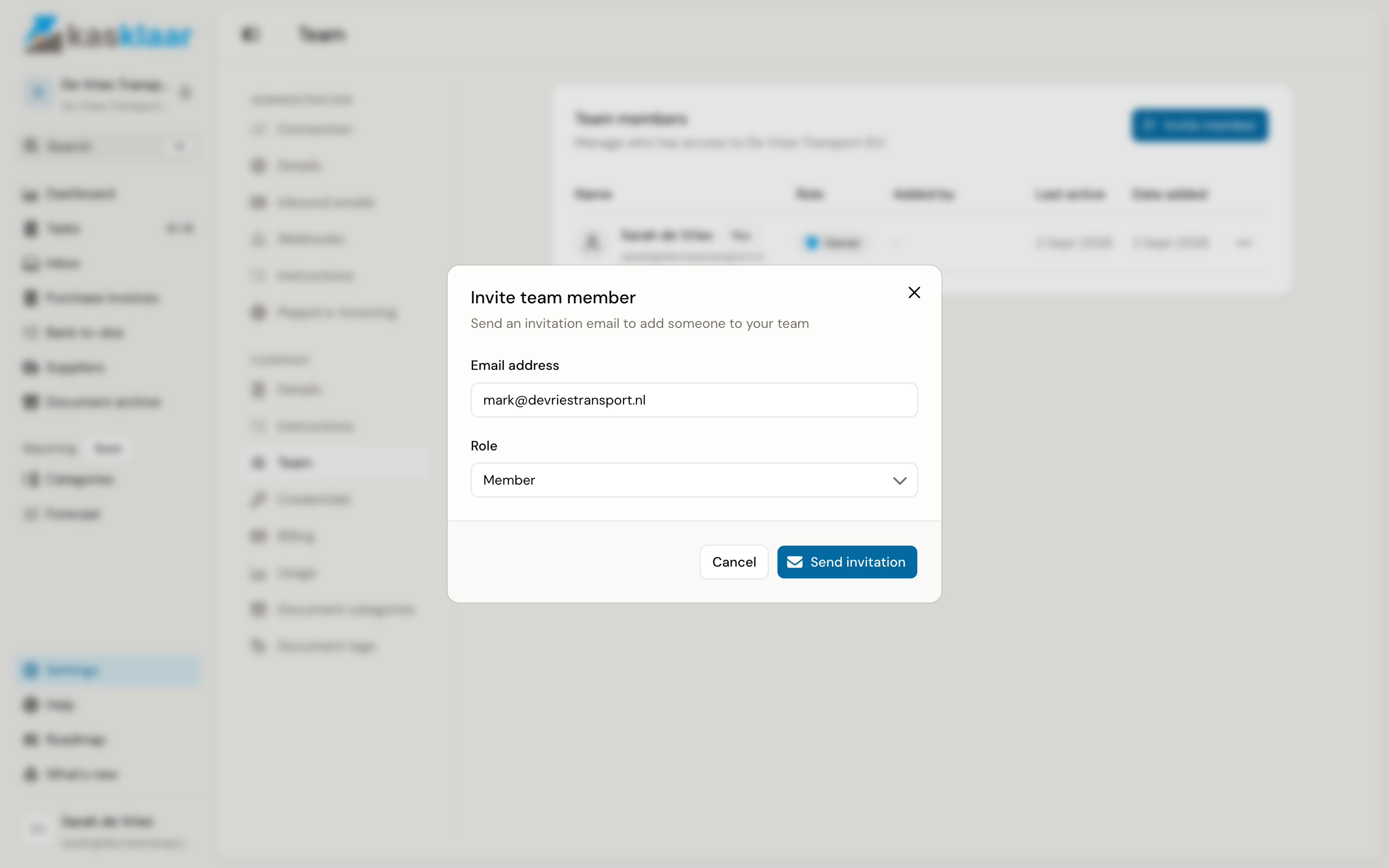
- Click Invite member.
- Fill in the Email address and choose the Role, Member by default.
- Click Send invitation.
The invitation then sits under Pending invitations until it is accepted. It cannot be resent; if you want a different role or address, withdraw it with Revoke invitation and invite again.
What the invitee sees
The invitee receives an email with a link. It opens the screen You have been invited with the company and the role. Without a Kasklaar account yet, they click Create account: name, language and password, with the email address from the invitation. With an existing account they choose I already have an account and sign in. They then confirm with Accept and join and are in your team.
Changing a role or removing someone
Click the menu behind the team member. Change role makes a Member an Owner or the other way round. Remove member takes someone out of the team; they lose access immediately and can be invited again later. Behind your own name it says Leave team.
Frequently asked questions
Can a Member invite someone themselves? No, only an Owner can.
I work with an accountancy firm; are those people listed here too? No. The firm has its own team under Settings, Accounting firm, Team. Only the people of your own company are listed here.
In which language does the invitee get the email? In the language of your company's country. The invitee picks their own language when creating their account.
See also
- Assigning tasks and creating your own, for dividing work within the team.
- Creating an account and connecting Exact Online