Your account, language and sign-in
Your name and email address, the language and formatting of your screens, and how you sign in, with a password, with your fingerprint or face, or with an extra code
Everything that is yours rather than the administration's is under Account: your name and email address, the language you see Kasklaar in, and how you sign in. Every colleague has their own account with their own settings.
Where to find it
Click your name at the bottom left and choose Account. The page has six blocks: Profile, Preferences, Login activity, Password, Authenticator app and Passkeys. Profile and Preferences have a pencil at the top right; click it, make your changes and click Save.
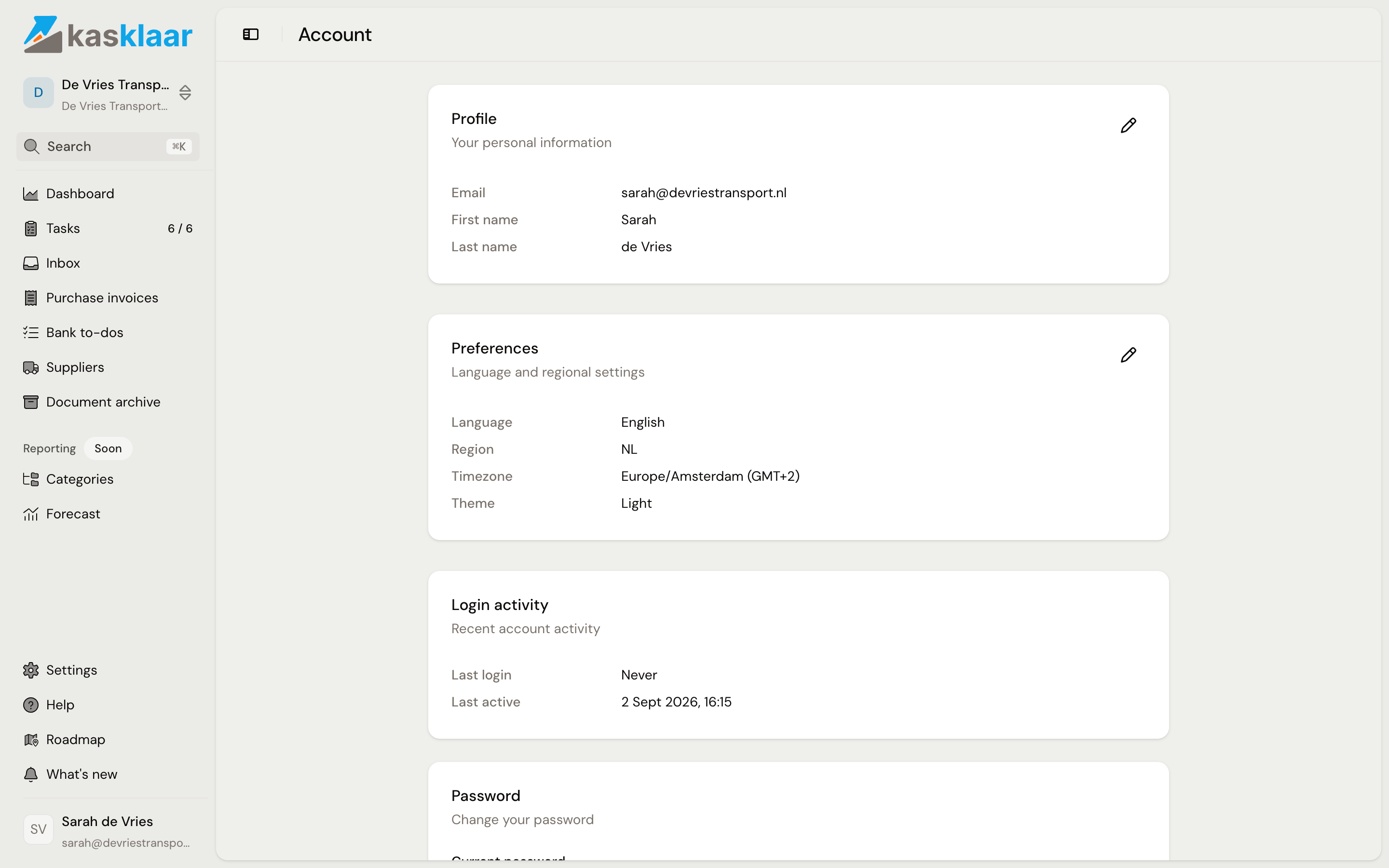
Profile
Your First name, Last name and Email. If you change your email address, Kasklaar first asks you to confirm. The address then shows Not verified and you receive a six-digit code at the new address, which you enter the next time you sign in; the old address gets a notice. If the email did not arrive, click Resend. A new name shows at the bottom left straight away.
Preferences
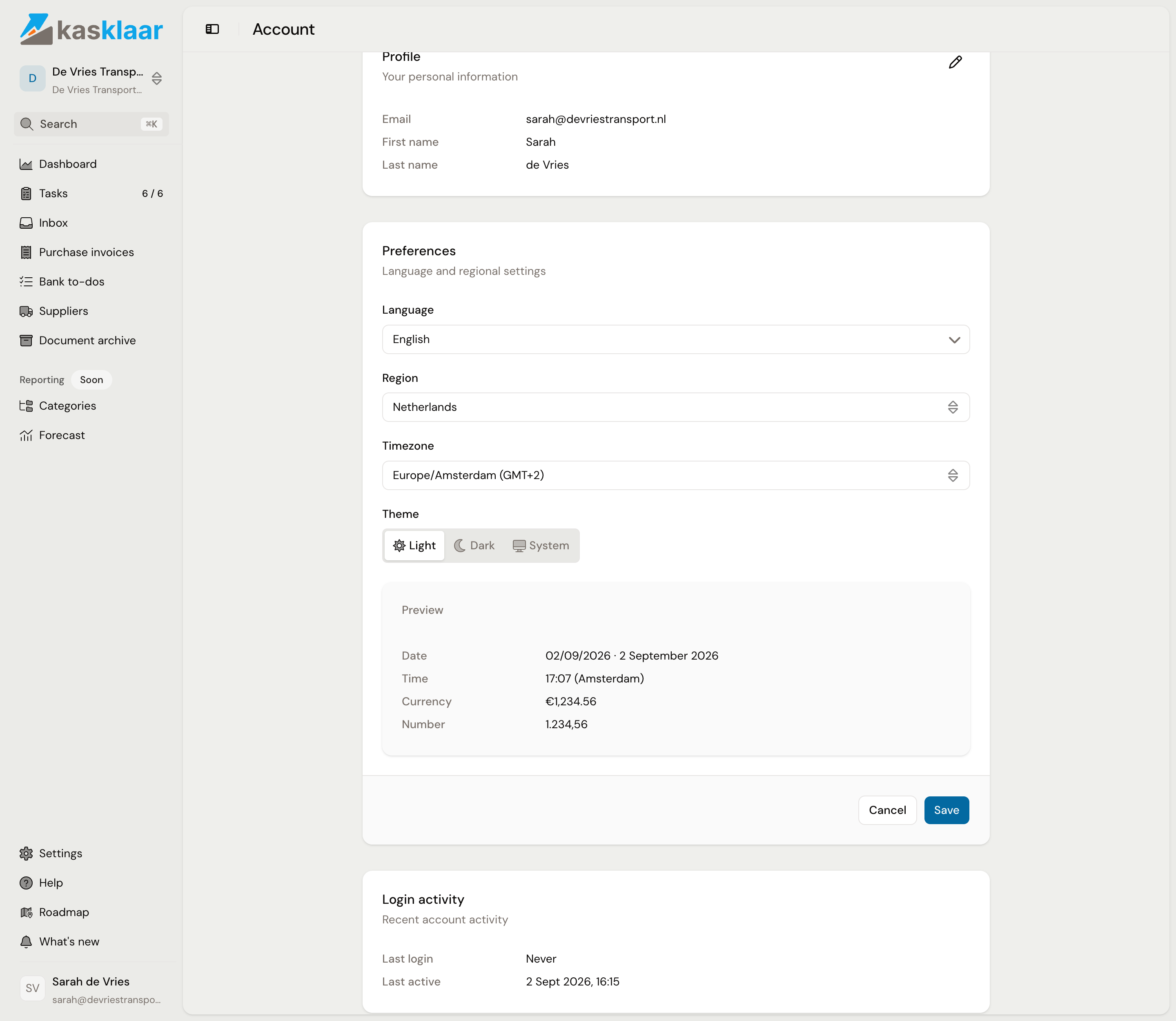
- Language: Dutch or English, for your screens only. Colleagues pick their own. The language of tasks and document categories is a setting of the administration, see Administration details.
- Region: sets how amounts, numbers and dates are written.
- Timezone: sets which time Kasklaar shows for an event.
- Theme: Light, Dark or System, the last one follows your device.
Below the form is Preview, with a date, time, amount and number in the formatting you are choosing. After Save the page reloads.
Login activity
This shows when you last signed in and when you last did something in Kasklaar. There is nothing to set here; if a time does not match what you know, change your password.
Changing your password
Fill in Current password, New password and Confirm new password and click Change password. The meter under the new password runs from Weak to Strong. Kasklaar refuses a password that is too weak or appears in a known data breach. On other devices where you are signed in, you stay signed in.
Signing in with your fingerprint or face
A passkey is signing in without a password: your device confirms who you are with the fingerprint, face recognition or PIN you also unlock it with. There is nothing to remember and nothing to leak.
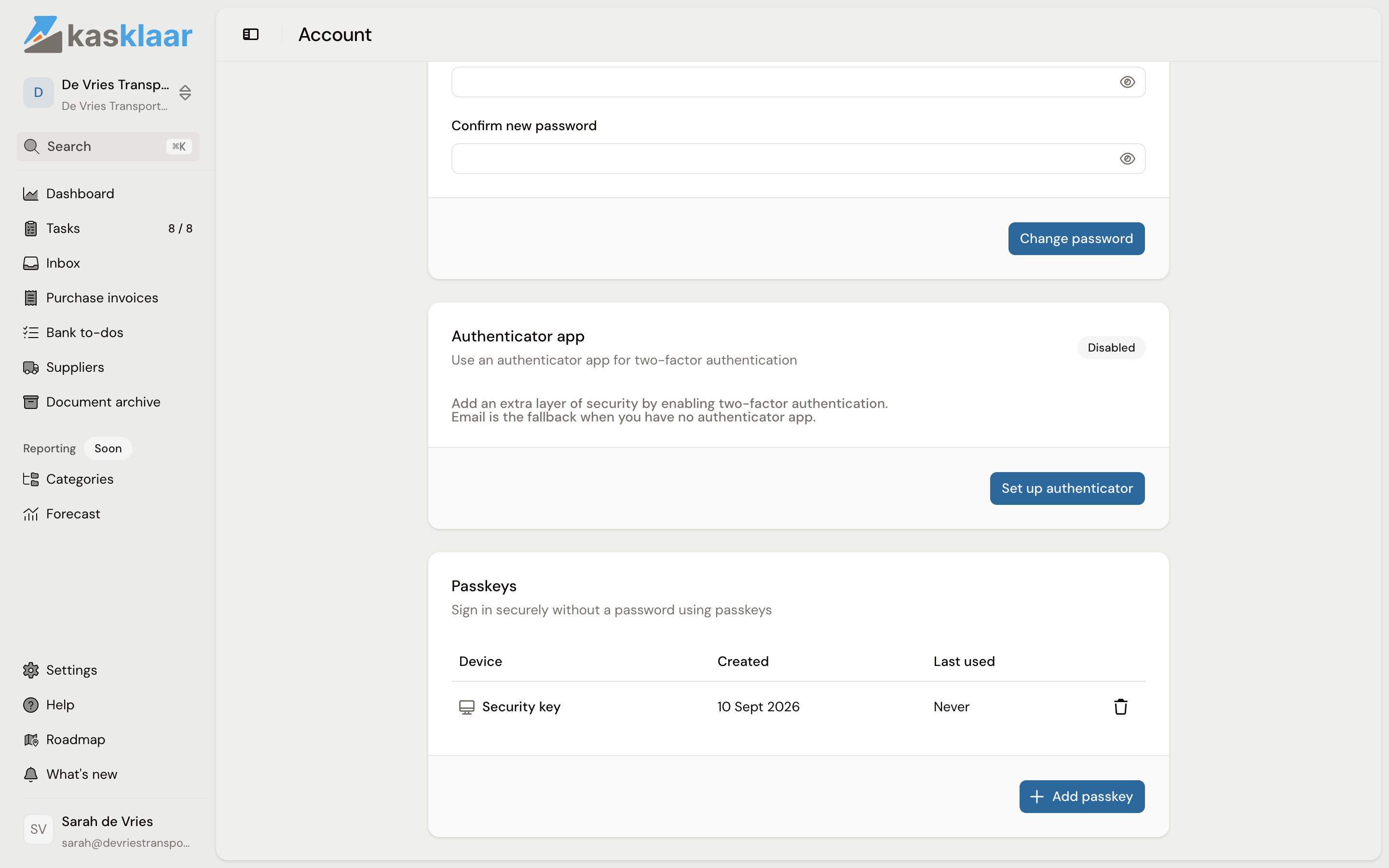
- Click Add passkey.
- Your device asks for your fingerprint, face or PIN. Confirm.
- The passkey is now in the list, with Created and Last used.
When signing in you enter your email address and Kasklaar then offers Use passkey or Use password. A passkey belongs to the device or the password manager you keep it in; on another device you add one or sign in with your password. To get rid of one, click the bin behind the passkey and confirm with Delete passkey.
An extra code when signing in
With two-factor authentication Kasklaar asks, next to your password, for a code from an app on your phone, such as Google Authenticator, Microsoft Authenticator or 1Password. Someone who has your password still cannot get in.
- Click Set up authenticator and enter your password.
- Scan the QR code with the app and enter the Verification code the app shows.
- Store the backup codes away from your phone, for example in your password manager, and tick that you have saved them.
The block then says Enabled and shows how many backup codes you have left. Regenerate backup codes makes a new set; Disable turns the extra code off again. Both ask for your password and a code from the app. The extra code also applies when you sign in with a passkey. If you have not set up an authenticator app, Kasklaar sends the code by email; that is shown as a line under the block.
Frequently asked questions
I see Dutch, my colleague sees English. Is that right? Yes. Language, region, timezone and theme are per person.
My phone is gone and the authenticator app was on it. That is what the backup codes are for. If you did not keep them, ask for help via Help.
I have two passkeys and cannot tell which is which. Both are called Security key; the date under Created tells them apart.
Can I delete my account? Not yourself. Ask via Help.
See also
- Managing your team
- Administration details, for the administration's Default language.